Connect Claude or ChatGPT to your fewbase tools
fewbase has an MCP server. MCP is an open standard that lets AI apps such as Claude or ChatGPT use outside tools. Once connected, you can ask the assistant to issue an invoice, answer a support ticket or check cookie consent numbers, and it does it in your fewbase account.
The server address is the same for every app:
https://fewbase.com/mcp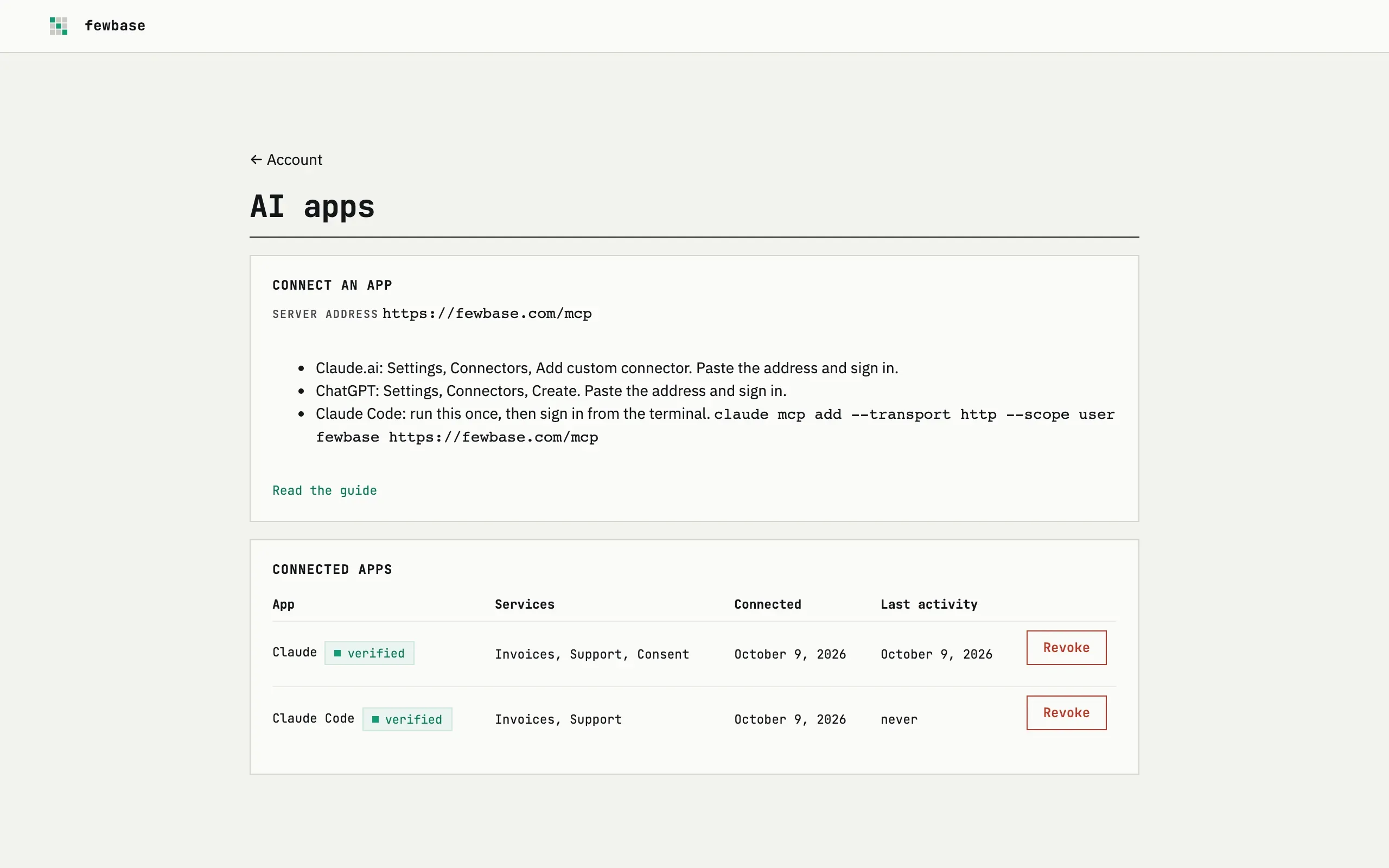
What the assistant can do
Section titled “What the assistant can do”The assistant works only inside the services you allow when you connect. It uses the same limits as your plan.
| Service | Reads | Changes |
|---|---|---|
| Invoices | your profile, clients, documents with totals and payments | create and update clients, create and edit drafts, issue, send by email, record payments, void |
| Support | your help desks, ticket queues, ticket threads, customers | reply to a ticket, close or reopen it |
| Consent | your sites, banner settings, consent statistics, the consent log, the change history | nothing yet |
| Time Recorder | your projects, tasks with the timer state, the entries of a day, reports for a period | create projects and tasks, start and pause the timer, edit and delete entries |
| Infra Tracker | your projects with the state of the uptime, SSL and domain checks, the events of a project, monthly and yearly costs, alert settings | add, change and delete projects, change alert settings |
| Subscriptions Tracker | your subscriptions with amounts, periods and next charge dates, the spending summary in your base currency | add, change, archive and delete subscriptions |
Sending an invoice, replying to a ticket and closing a ticket send real emails to your clients and customers. Voiding an invoice, deleting a time entry, deleting a monitored project and deleting a subscription cannot be undone. fewbase marks these actions so that apps like Claude ask you to confirm first.
Connect
Section titled “Connect”Claude.ai
Section titled “Claude.ai”- Open Settings, then Connectors.
- Choose Add custom connector and paste the server address.
- Sign in to fewbase in the window that opens and tick the services you want to allow.
The connector is then available in Claude on the web, in the desktop app and on the phone.
Custom connectors may depend on your Claude plan.
ChatGPT
Section titled “ChatGPT”- Open Settings, then Connectors.
- Choose Create, paste the server address and confirm.
- Sign in to fewbase and tick the services you want to allow.
Custom connectors depend on your ChatGPT plan, and the menu names can differ. If you do not see Connectors, look under Settings, Apps or the developer mode setting.
Claude Code
Section titled “Claude Code”Run this once in a terminal:
claude mcp add --transport http --scope user fewbase https://fewbase.com/mcpThen run /mcp inside Claude Code and sign in. With --scope user the
connection works in every project, not only in the current folder.
Check what is connected
Section titled “Check what is connected”Open Account and choose Manage connections in the AI apps card. The page lists every connected app with the services it may use, the date it was connected and the last time it was active.
Take access away
Section titled “Take access away”Press Revoke next to the app. Its access stops within a minute. The app may still show fewbase in its list; connect again from the app if you want it back. Signing out of fewbase does not disconnect apps.
Can I allow only reading?
Not yet. Each service is allowed as a whole. Consent can only be read for now.
Does the assistant see my password or payment details?
No. It receives a token for the services you ticked. It never sees your email sign-in link, and fewbase stores no card details at all.