Appearance: layout, colours, languages and texts of the banner
The Appearance tab has the settings on the left and a live preview on the right. The preview is the real banner. It can show the first screen, the settings window and the round button, on a desktop or a phone. Nothing changes on your site until you press Save. “Reset to defaults” brings back the layout, colours, button and texts.
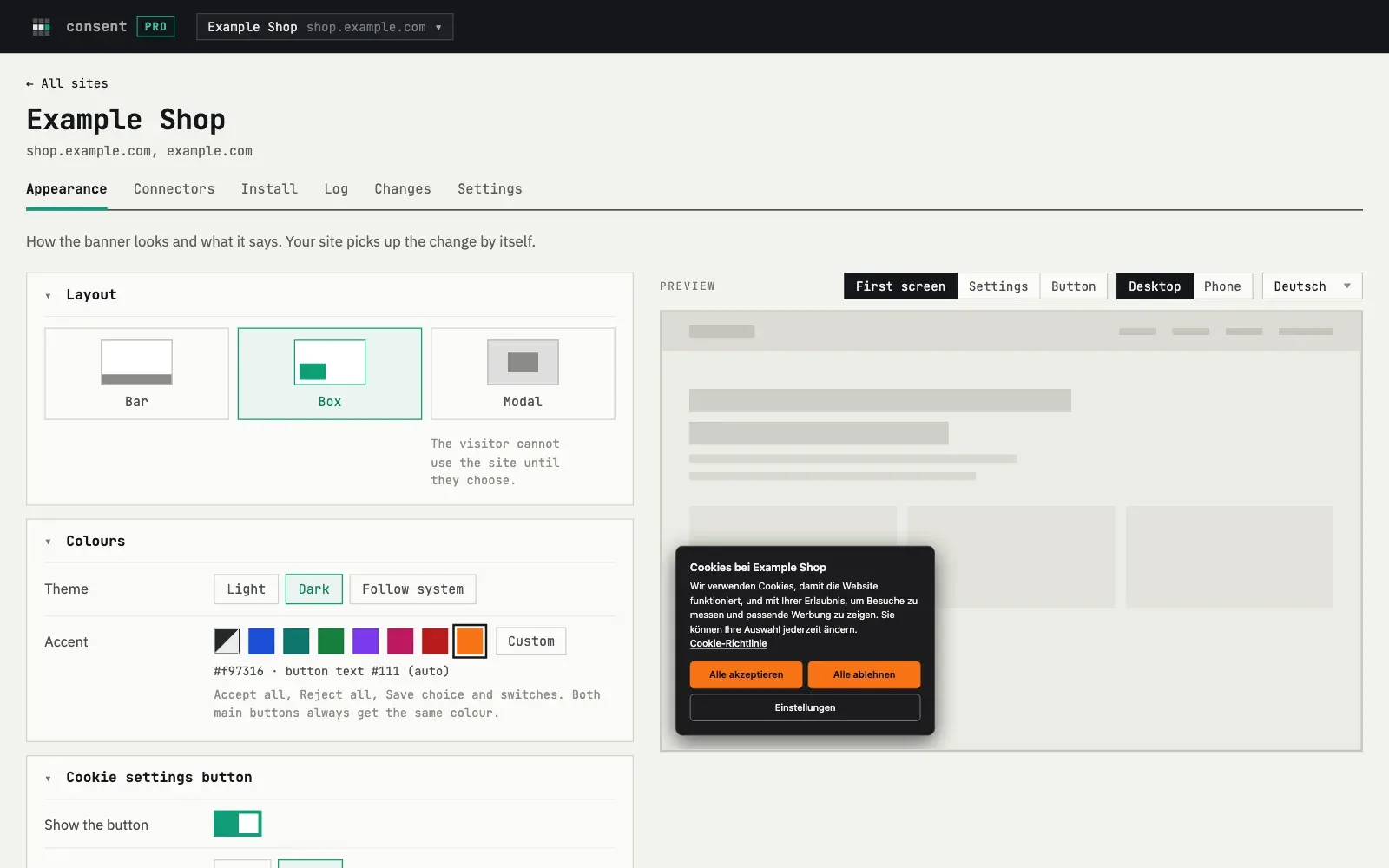
Layout
Section titled “Layout”| Layout | Where it sits |
|---|---|
| Bar | Across the bottom of the page |
| Box | A card in the bottom corner |
| Modal | A window in the centre. The visitor cannot use the site until they choose |
On a phone the bar and the box become a sheet at the bottom of the screen.
Colours
Section titled “Colours”- Theme. Light (default), dark, or “Follow system”, which uses the visitor’s device setting.
- Accent. The colour of “Accept all”, “Reject all”, “Save choice” and the switches. The two main buttons always get the same colour. The text colour on the buttons is chosen for you, so that it stays readable. If you leave the accent empty, the banner uses graphite in the light theme and a light grey in the dark theme.
Cookie settings button
Section titled “Cookie settings button”Choose the corner, left or right, or switch the button off. The left corner is the default, so that the button does not cover a chat or support button. If you use fewbase Support on the same page, the button moves aside for it. If you switch the button off, add your own link that opens the settings.
Cookie policy link
Section titled “Cookie policy link”Enter the full address of your cookie policy, starting with https://. The
link is shown on the first screen of the banner. Without it, the dashboard
warns you that the banner is incomplete.
Languages and texts
Section titled “Languages and texts”The banner has 26 languages: the 24 official EU languages, Russian and Ukrainian. English is always in the list.
- Add only the languages your visitors use. Each language adds about 1 KB to the script.
- The first language in the list is the fallback. Drag to change the order.
- Press “Edit texts” to change the main texts in any language: the title, the text, the policy link, the button texts, the settings title and intro, and the description of each category. A changed field is marked, and “reset” brings the default back. Other small labels, such as “Services”, keep the default wording.
The “Consent by fewbase” line
Section titled “The “Consent by fewbase” line”On the Free plan the banner has a small “Consent by fewbase” link. On Pro and Business it is removed. After you change your plan, the line changes within a day, or right away when you save any setting.