Connectors: load Google, Meta and Clarity only after consent
On the Connectors tab you add a tool by its ID. The banner loads the tool itself, and only after the visitor allows its category. Remove the tool’s own code from your site first, or the tool will load before consent.
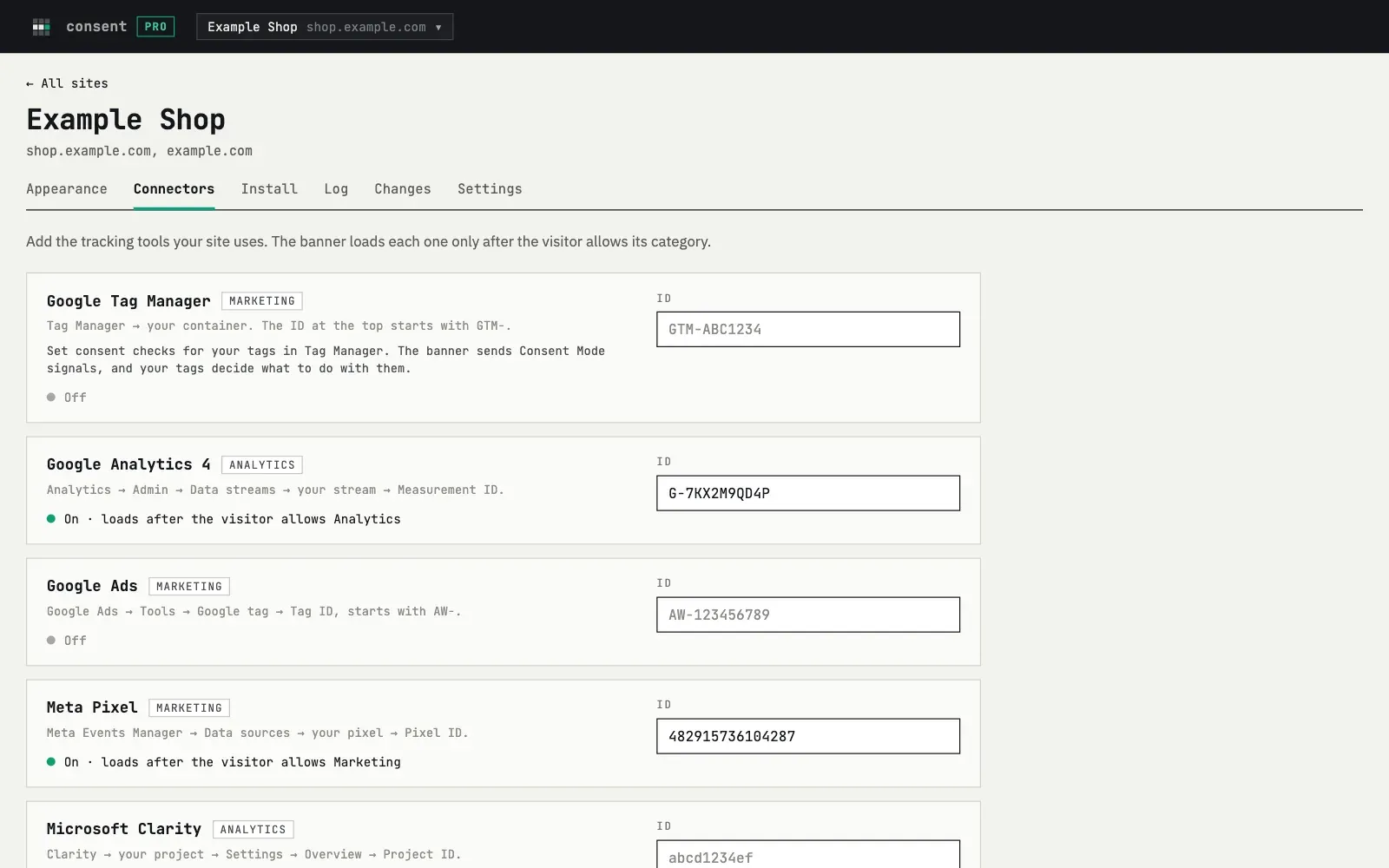
| Tool | ID looks like | Loads after |
|---|---|---|
| Google Tag Manager | GTM-ABC1234 |
The visitor makes any choice |
| Google Analytics 4 | G-ABC123DEF4 |
Analytics is allowed |
| Google Ads | AW-123456789 |
Marketing is allowed |
| Meta Pixel | Digits only | Marketing is allowed |
| Microsoft Clarity | Project ID | Analytics is allowed |
Google Tag Manager loads after any choice, even “Reject all”, because it is a container. The banner sends it the Consent Mode signals, and you set consent checks for each tag in Tag Manager. Visitors see Google Tag Manager listed under Marketing in the settings window.
If your site already loads Google Analytics or Google Ads with the same ID, the banner does not add a second copy. That tag of yours still loads before consent, so remove it.
Meta Pixel and Clarity wait for consent in every mode. When Clarity is on the page, the banner also passes the choice to it.
Google Consent Mode v2
Section titled “Google Consent Mode v2”Consent Mode v2 is built in. One setting covers Google Tag Manager, Google Analytics 4 and Google Ads.
- Basic (default). Google tags load only after the visitor chooses. Nothing goes to Google before that.
- Advanced. Google tags load right away with consent set to “denied” and send cookieless pings until the visitor chooses. Google uses them to model missing data. Some EU data protection authorities see this as risky, so choose it on purpose.
Two more switches:
- Redact ad data (on by default). When marketing is not allowed, Google Ads cookies are not read and click IDs are removed from requests.
- Pass ad click details (off by default). Keeps
gclidin page links, so that conversions can be counted without cookies.
Own script
Section titled “Own script”For a tool that is not in the list, add an own script: a name, a category and the code. The name is shown to visitors under the category.
- Up to 10 scripts, each up to 20,000 characters.
- The code runs on every page of your site after the visitor allows the category. Only paste code from a service you trust.
Asking visitors again
Section titled “Asking visitors again”When you add a service to a category, visitors who already made a choice have not agreed to it. The dashboard shows “Ask visitors again?” and lists what you added. To save the change you press “Save and ask again”, and visitors see the banner again on their next visit. If you press Cancel, the change is not saved. Removing a service or changing an ID does not ask again.
Email about changes
Section titled “Email about changes”Each time you change a connector, a Google Consent Mode setting or an own script, we send an email to your fewbase account address with what changed. Every change is also on the Changes tab.