Getting started with Invoices: setup to first send
1. Your details
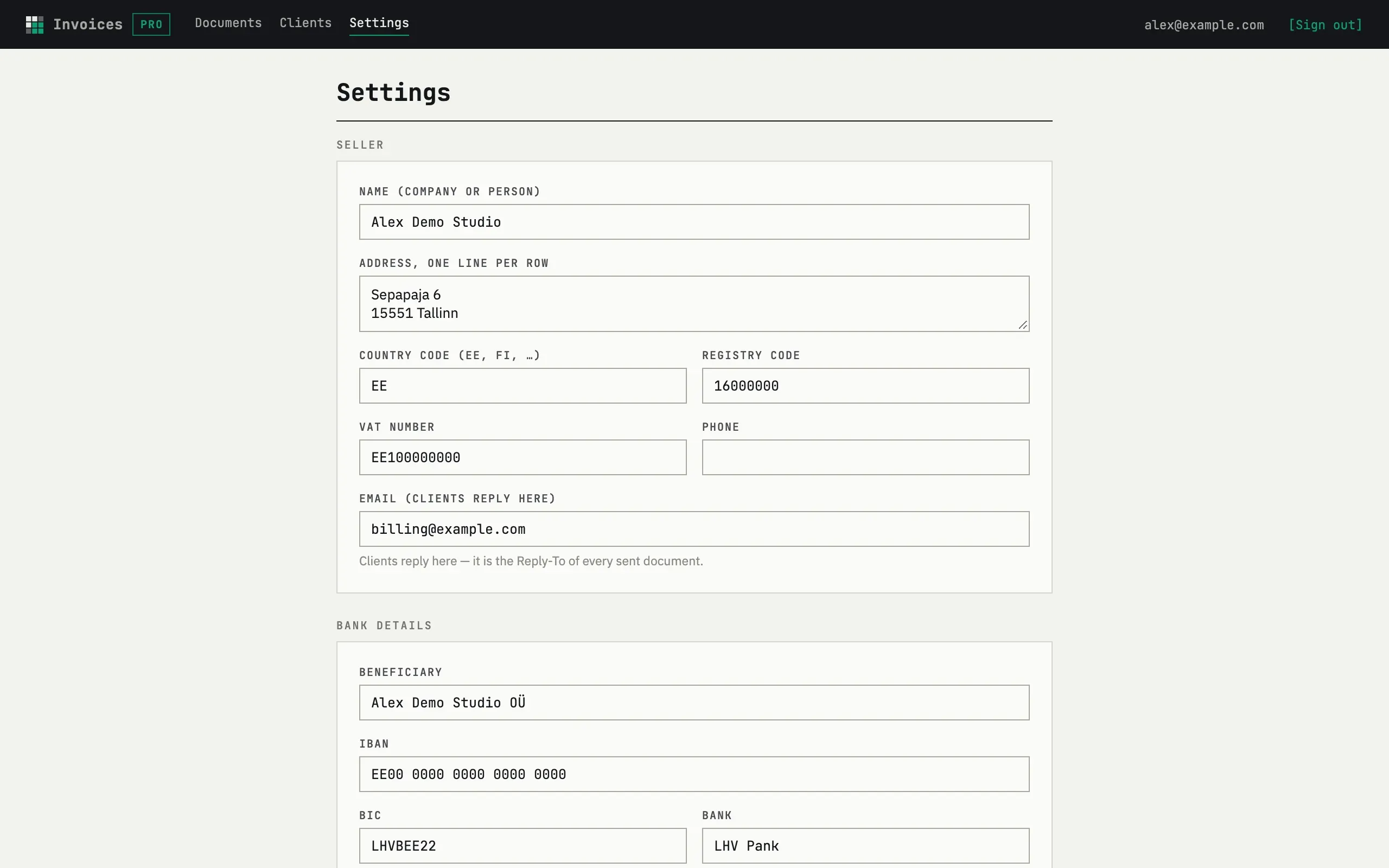
Section titled “1. Your details”Open fewbase.com/invoices and go to Settings. Enter the seller name, address, registry code, VAT number and bank details, and upload a logo. All of it lands on every document.
2. Add a client
Section titled “2. Add a client”Clients → New client. Name and address are enough; add the VAT number if the client needs it on the sheet.
3. Create a document
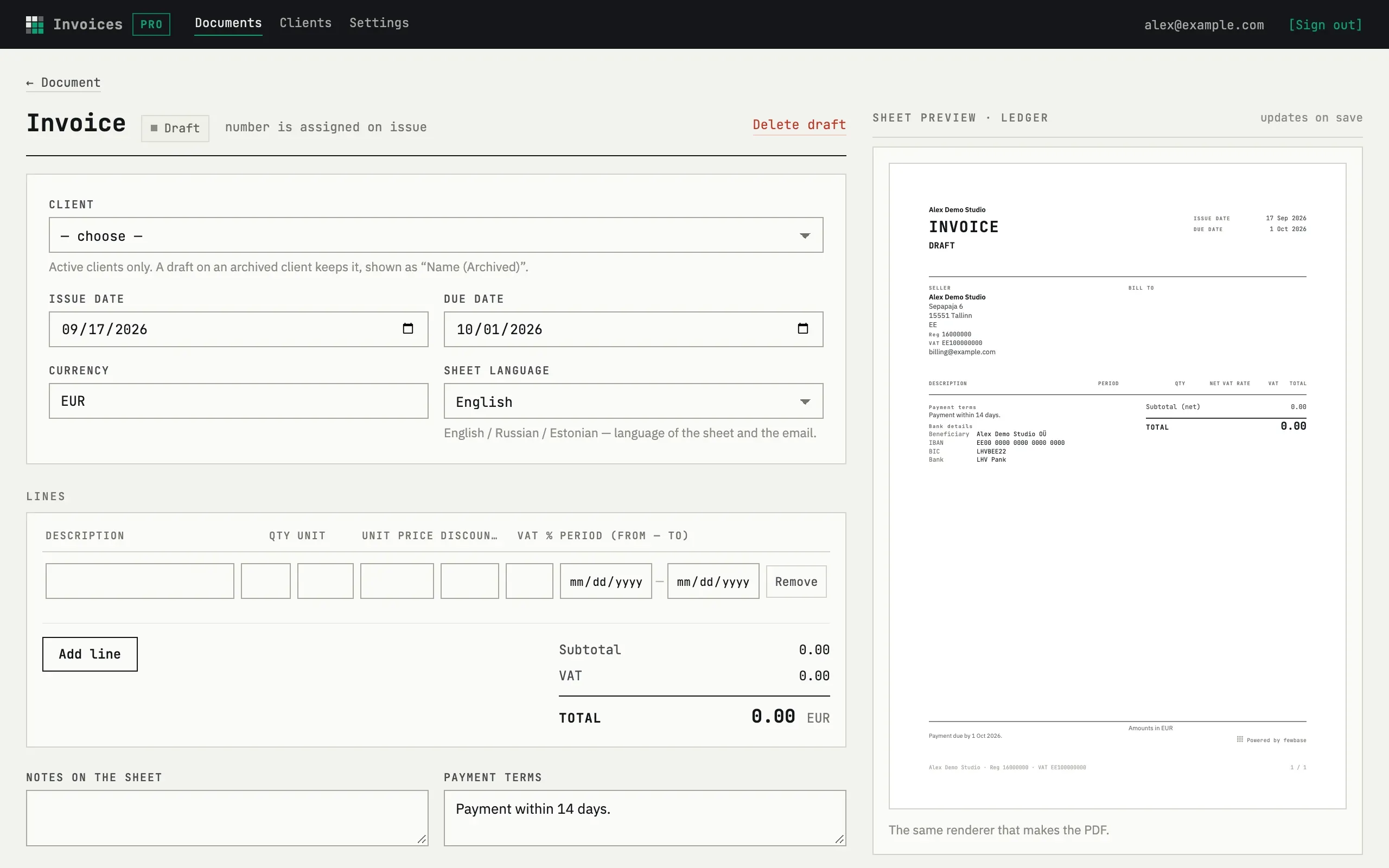
Section titled “3. Create a document”Documents → New invoice. This opens the edit form of a fresh draft: pick the client, add lines — description, quantity, unit, unit price, discount and VAT — and the totals below update as you type. Save keeps it as a draft; the number is assigned only on issue.
4. Issue and send it
Section titled “4. Issue and send it”Back on the document page, press Issue to number it, or Issue and send to number it and email the client in one step.
The client paid part of the amount — what now?
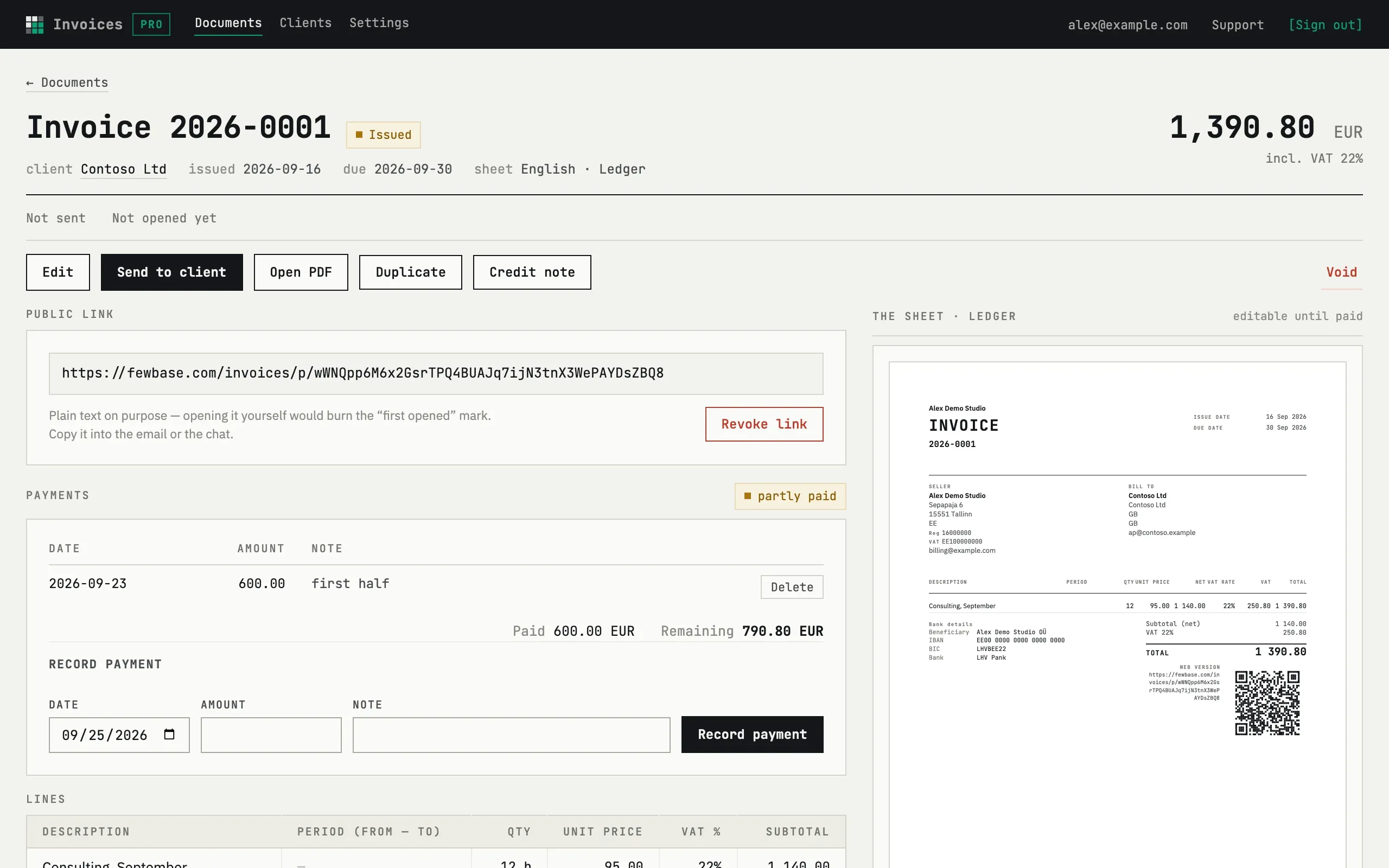
Open the document and use Record payment under Payments. The public page shows the amount paid and the remaining balance.
I made a mistake in an issued invoice
If the invoice is not paid yet, press Edit on the document page, fix it and save. The number stays the same, and the earlier version stays on the document page.
If the invoice is already paid, press Credit note. It opens a new draft with the lines reversed, referencing the original invoice. Issue that draft the same way.