What your customer sees in Support: form, emails and the personal page
This page describes the customer’s side of the service, so you can hand it to your own customers as is. Nothing here needs an account or a password.
The form
Section titled “The form”The portal page — or the widget panel on your site — asks for an email, a name, a subject and a message, and has a spam check. Messages are plain text; the form has no image field — images are added from the thread once the request is confirmed.
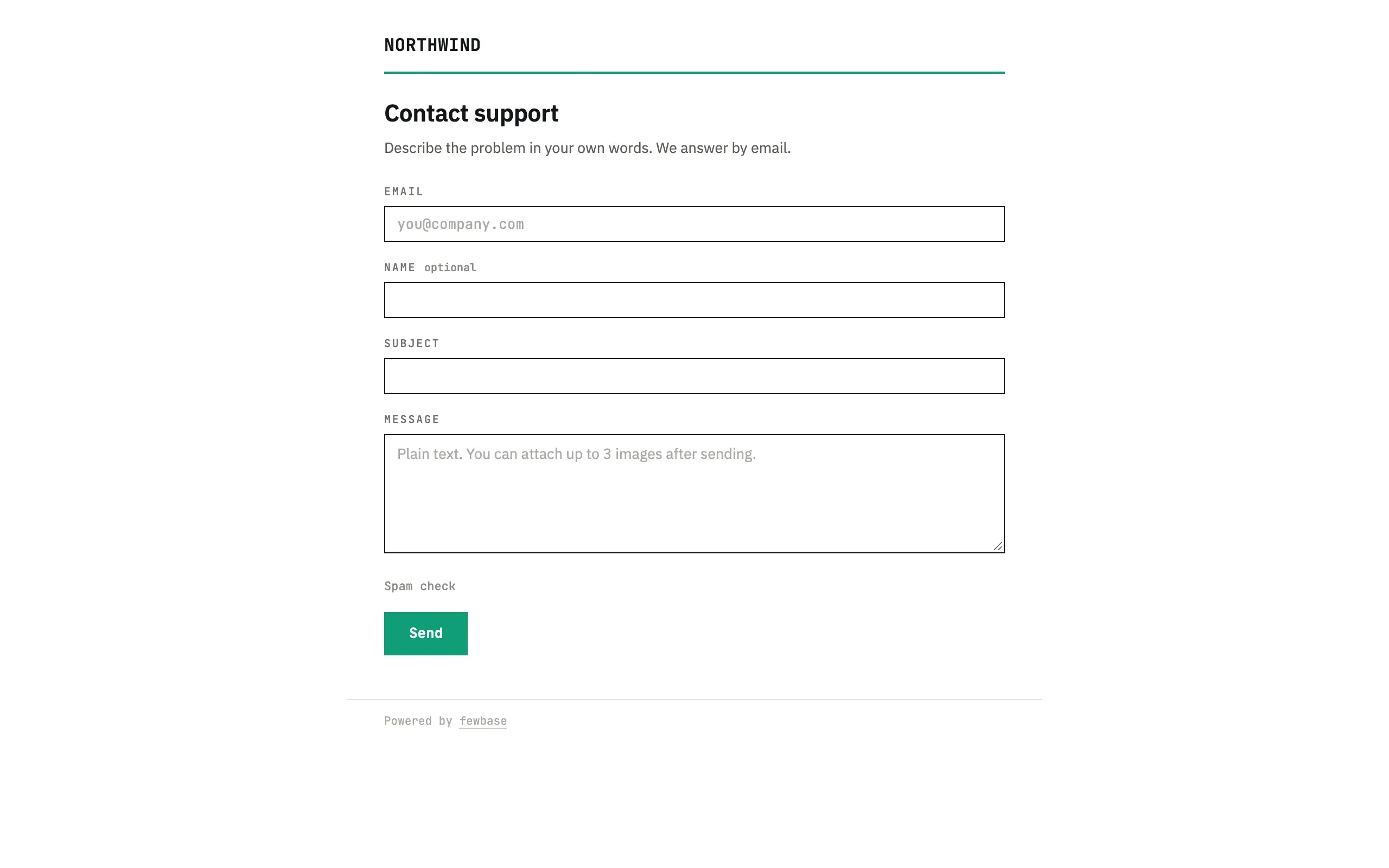
The title, subtitle, colours and fields shown here follow your Appearance settings:
- Name can be optional (default), required, or hidden entirely.
- Subject can be its own field, or hidden — in that case the subject is taken from the first line of the message automatically, so the customer only ever sees one text box.
- The form’s title and subtitle, and its light, dark or system-matching theme, can be set to match your site.
If the service has switched off accepting requests, the page says so instead of showing the form; existing conversations still work.
Confirming the request
Section titled “Confirming the request”Whether this step happens depends on Confirm the sender’s email in Settings, on by default, on every plan.
With confirmation (default)
Section titled “With confirmation (default)”After Send, the page tells the customer to check their email and confirm; that page’s hint line (“check your spam folder” by default) can be replaced with your own text in Appearance under Text after sending — the line saying an email is on its way stays either way. The customer gets an email “Confirm your request” from “Service via fewbase” with a button. Nothing reaches support until the button is pressed: the email says so, and the page it opens has one more Confirm button.
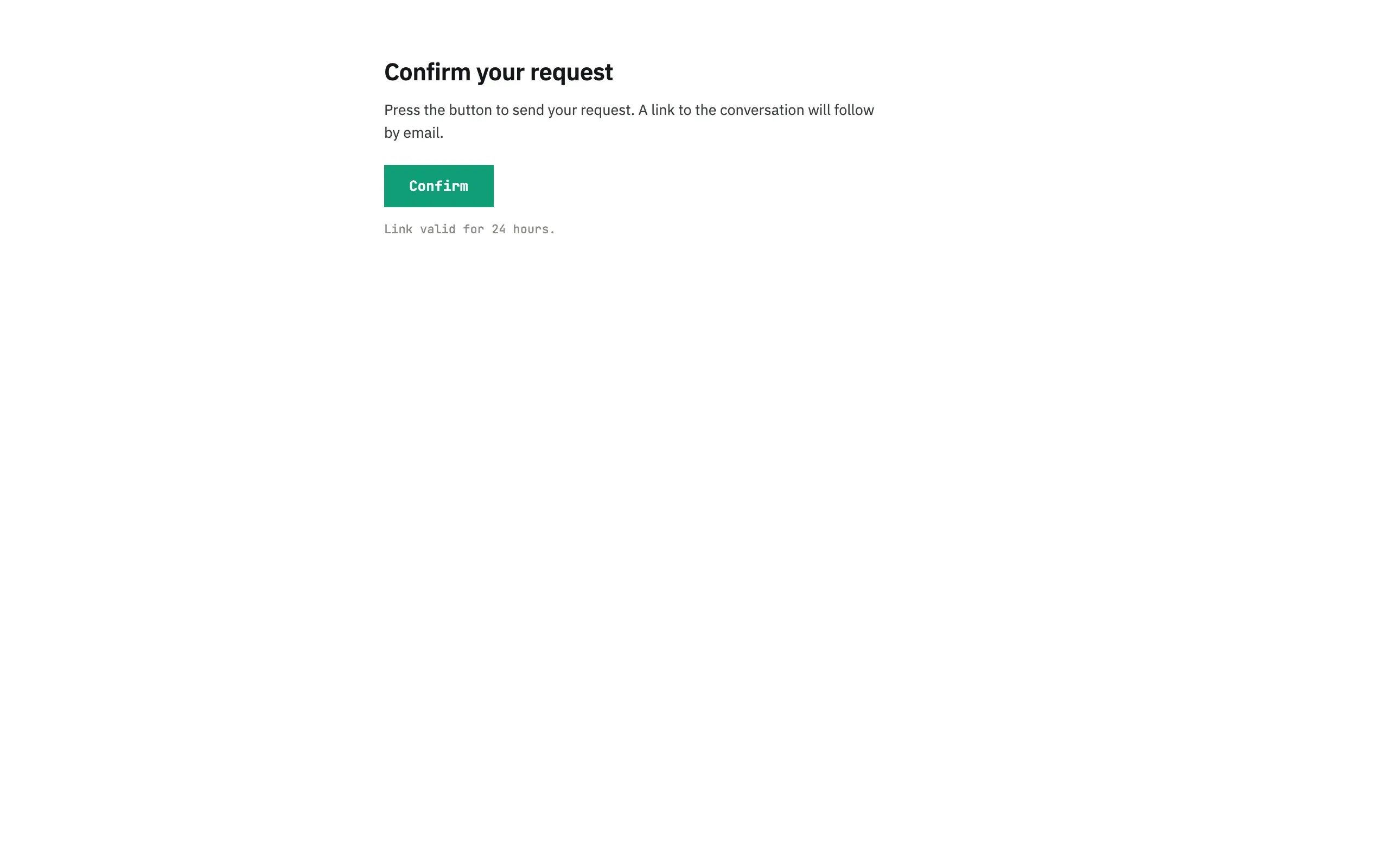
The link lasts 24 hours and works once. Pressing it creates the request, opens the conversation, and sends a second email — “Request #N received”, where N is the request’s number — with the personal Your requests link.
Without confirmation
Section titled “Without confirmation”If the setting is off, there is no confirmation step. The request arrives at once, and the page after Send says “Request sent”. The customer still gets the “Request #N received” email right away, with the same personal Your requests link, but the page after sending does not show that link itself; it only names the address the reply will go to. Because anyone could type someone else’s address, this email carries no words from the sender: only the request number, the service name and the link. The subject and the message appear once the customer opens the link.
Such a request is not fully trusted yet: it carries the “email not verified” label until the customer takes an action on their personal link. See Requests and Security and data for what that means and how it is protected.
“Your requests”
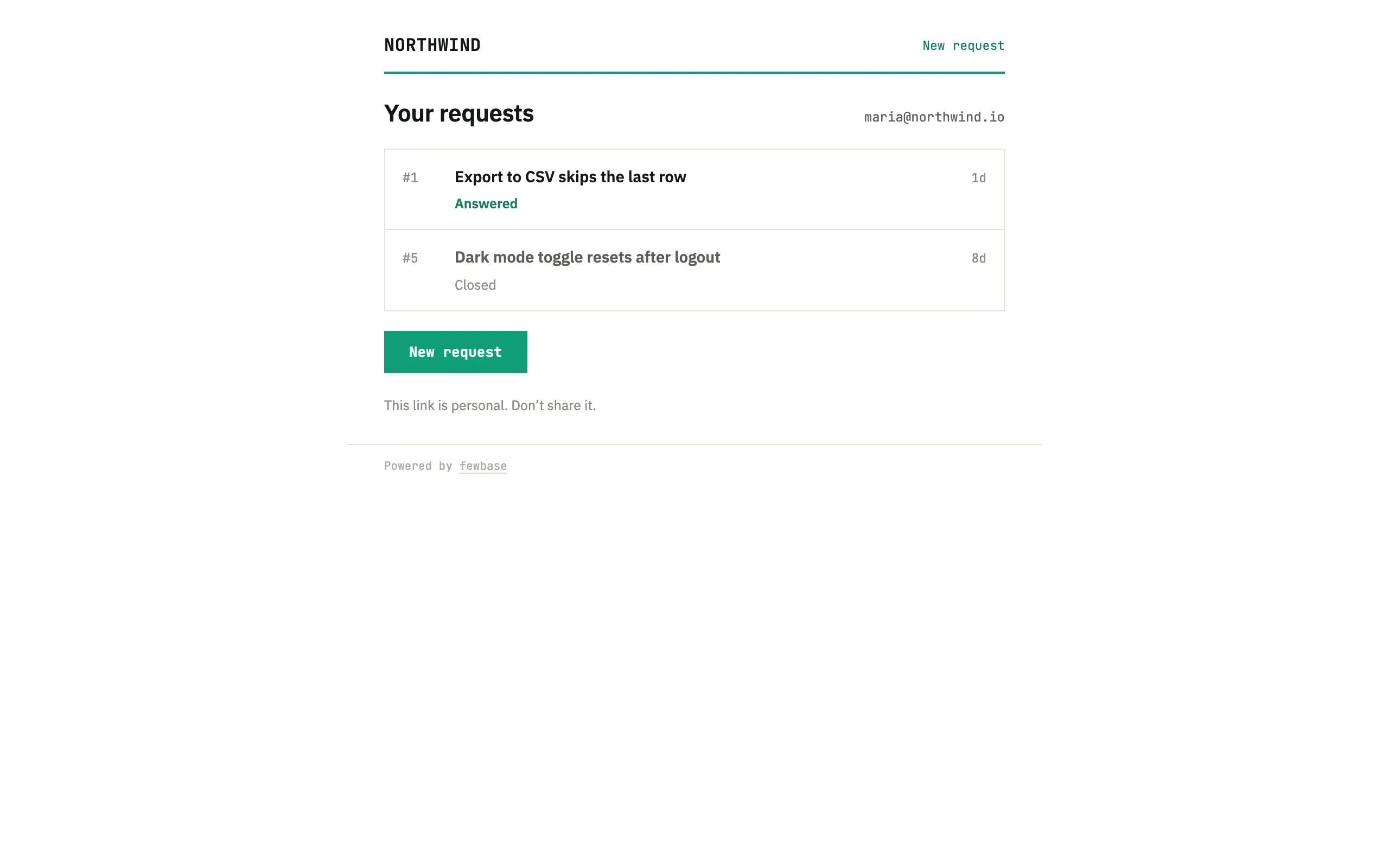
Section titled ““Your requests””The personal link opens the list of all the customer’s requests to this service with their status — waiting for reply, answered or closed — and a New request button. The same link comes with every later email, so there is nothing to remember. It is personal and should not be shared; support can revoke it and send a new one.
The thread
Section titled “The thread”Each request opens as a thread: the customer’s messages on one side, the service’s on the other, signed “Service Support” — agents’ names are not shown. When support replies, the customer gets an email with the first lines of the reply and an Open request button that leads here.
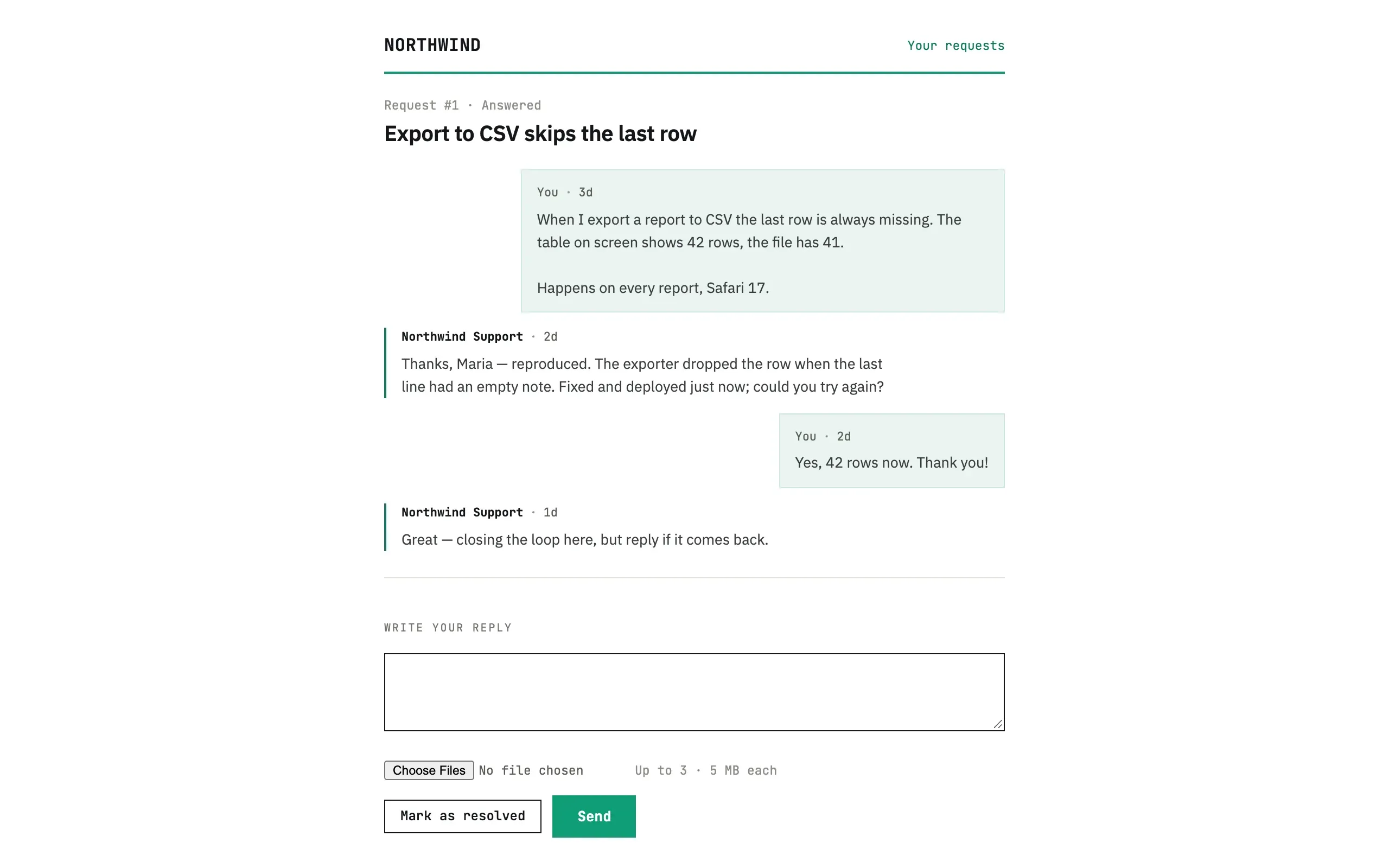
The customer replies in the box at the bottom and can attach up to three images (PNG, JPEG, WebP or GIF, 5 MB each). Replying to the email itself does not reach support — the reply is written on this page.
Resolving and reopening
Section titled “Resolving and reopening”Mark as resolved closes the request from the customer’s side. If support closes it, or it closes automatically after a period without a reply, the customer gets an email saying so. For 30 days after closing the thread still has the reply box: writing there reopens the request. After 30 days it stays readable but closed, and the page offers New request instead.
What if the confirmation email did not arrive?
Wait a minute and check spam. If the link has expired, send the request again from the portal. If several confirmation emails for the same address are already waiting, the form asks to check the inbox first.
What if the personal link was lost?
The newest email from the service still has a working link. If there is none, write to support again from the same address — the reply comes with the link.