Invoice numbering per year and document lifecycle
Every document moves through a small set of statuses: Draft, Issued, Paid and Void. Draft and Issued documents can be edited. Paid and Void documents cannot. Only a draft can be deleted.
Pressing Issue on a draft assigns the next number from a per-year
sequence in the format set in Settings — for example {YYYY}-{NNNN} produces
2026-0001, then 2026-0002. At the same moment, the document takes a
snapshot of your seller details, the client’s details and the theme. Later
changes to your profile or the client do not change an issued sheet by
themselves. Issuing
requires seller details, a client and at least one line — a draft missing any
of these cannot be issued.
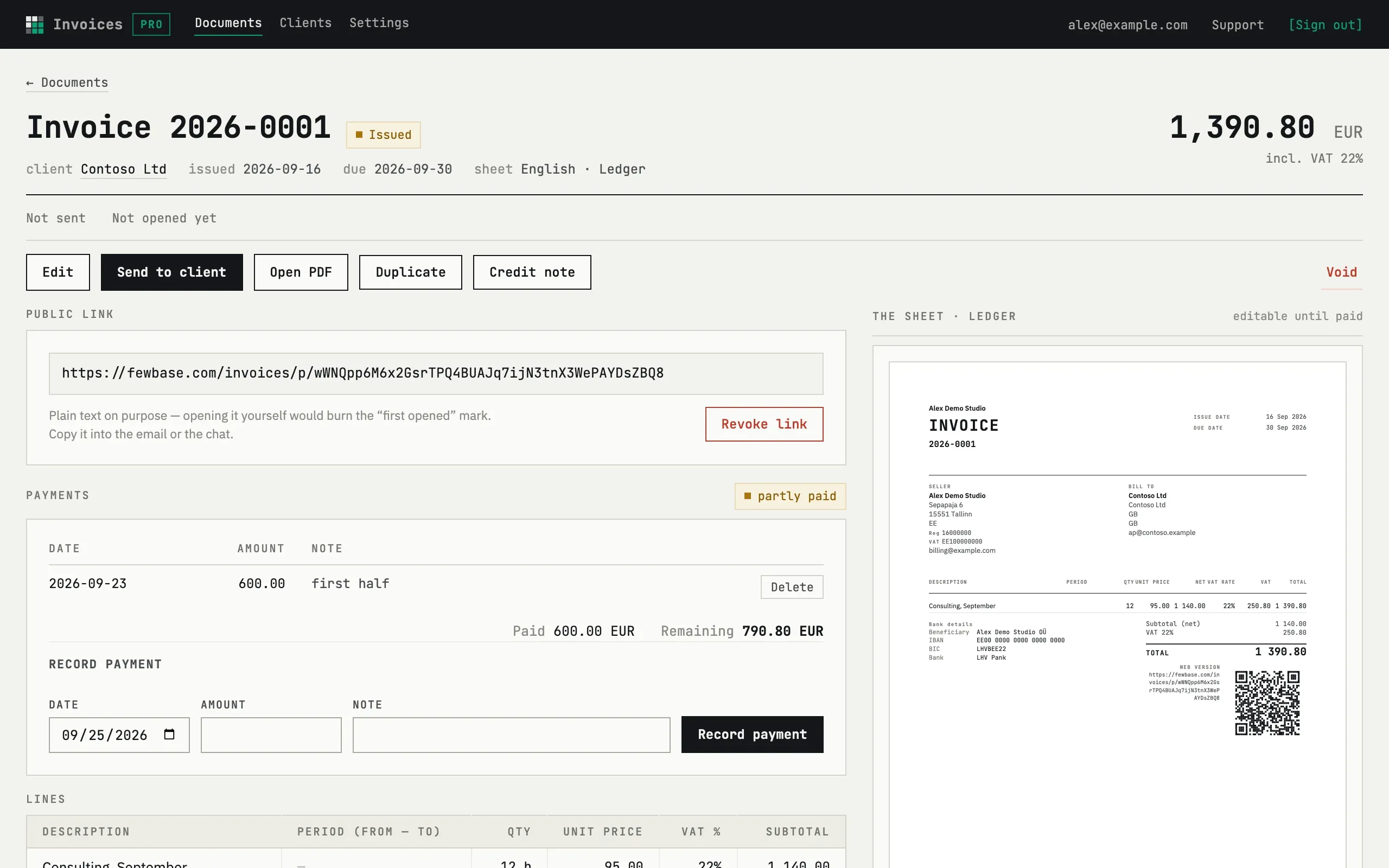
Editing an issued document
Section titled “Editing an issued document”An issued document can be edited until it is paid. Press Edit on the document page, make your changes and press Save. The number stays the same, and the document is not issued again, so it does not count toward your monthly limit.
Every save with changes creates a new version. The document page shows “Changed N times” with a list of versions, and each version opens as a PDF. The public link always shows the current version. Earlier versions are only visible to you.
Some limits apply:
- Your seller details and the theme stay as they were at issue. When you save, the document takes the client’s current details.
- The document must keep at least one line, and an invoice total must stay above zero.
- The new total cannot be lower than the payments already recorded.
- If an invoice already has payments, its currency cannot change.
If you already sent the document, the page tells you which version the client received and which one is current. The email is not sent again on its own. Press Send again when the client should get the new version.
Once an invoice is Paid or Void, it cannot be edited. A mistake is then fixed with a Credit note.
Paid and Void
Section titled “Paid and Void”A document becomes Paid automatically once its recorded payments cover the total; see Payments and credit notes. Void marks an issued or paid document as cancelled — the sheet is unaffected. Voiding does not free its number for reuse: the sequence keeps counting from where it left off, so the void banner reads “the number stays used”. Payments already recorded on a voided document are left as they are.
I issued a document with a mistake
If it is not paid yet, press Edit, fix it and save. The number stays the same, and the earlier version stays on the document page.
If it is already paid, do not void it. Press Credit note on the document card. It opens a draft with the lines reversed, linked to the original by number. Issue that draft to correct the total.
Why can’t I just delete an issued document?
Deletion only exists for drafts. An issued document already has a number in the sequence and may already be with the client — voiding it, or correcting it with a credit note, keeps that number and the paper trail intact.