Recording a credit note and part payment in Invoices
Payments and credit notes change what happened to an issued invoice without changing the invoice itself. Until an invoice is paid, you can also edit it directly; see Numbering and lifecycle.
Recording a payment
Section titled “Recording a payment”On an issued or paid invoice, use Record payment with Date, Amount and an optional Note. Each payment is added to the list; Paid and Remaining below it update immediately, and the document becomes Paid automatically once payments cover the total. Payments only apply to invoices — a quote has no payments, and a credit note is settled against the invoice it corrects instead.
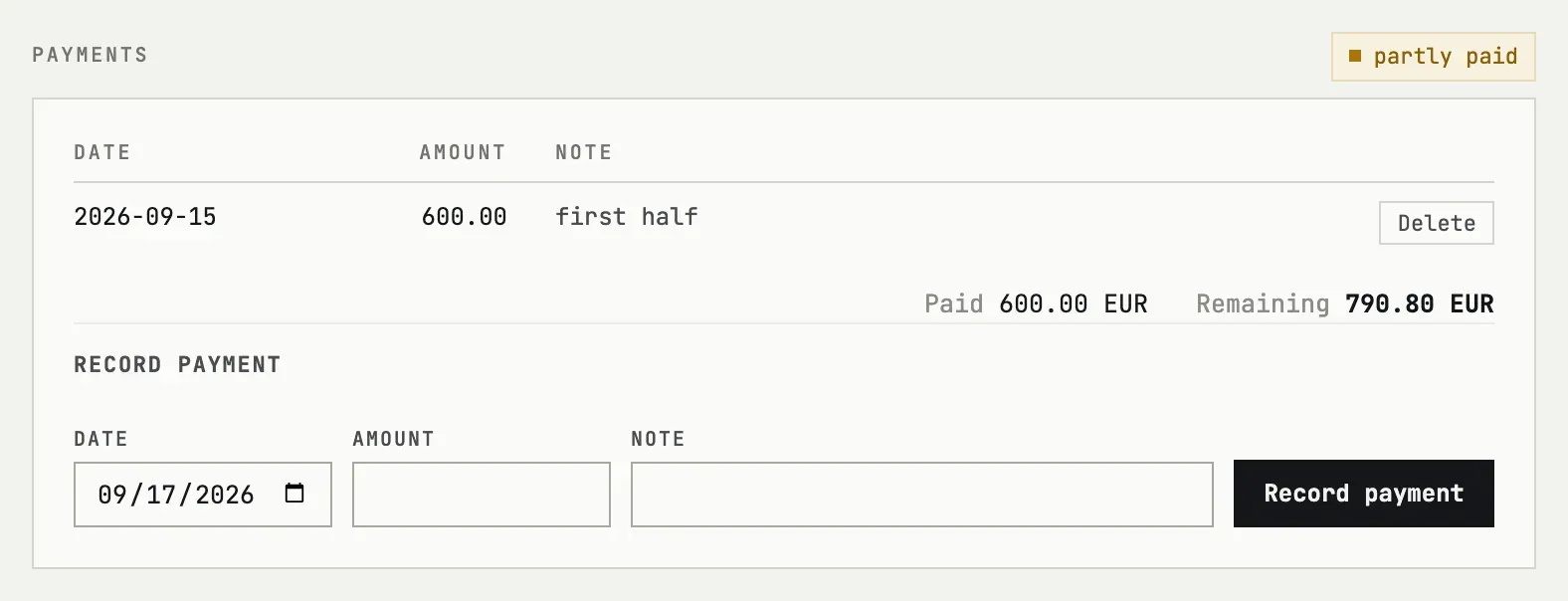
A payment can be removed with Delete next to it; the paid/remaining totals and the status recompute the same way. History is read-only on a void document — nothing can be added or removed there.
Credit notes
Section titled “Credit notes”Credit note, shown only on an issued invoice, opens a new draft with the same lines at negative amounts, linked back to the original by its number. Issue that draft like any other document: it gets its own number and a “Corrects invoice” reference on the card, and its Total on the sheet prints as a negative amount.
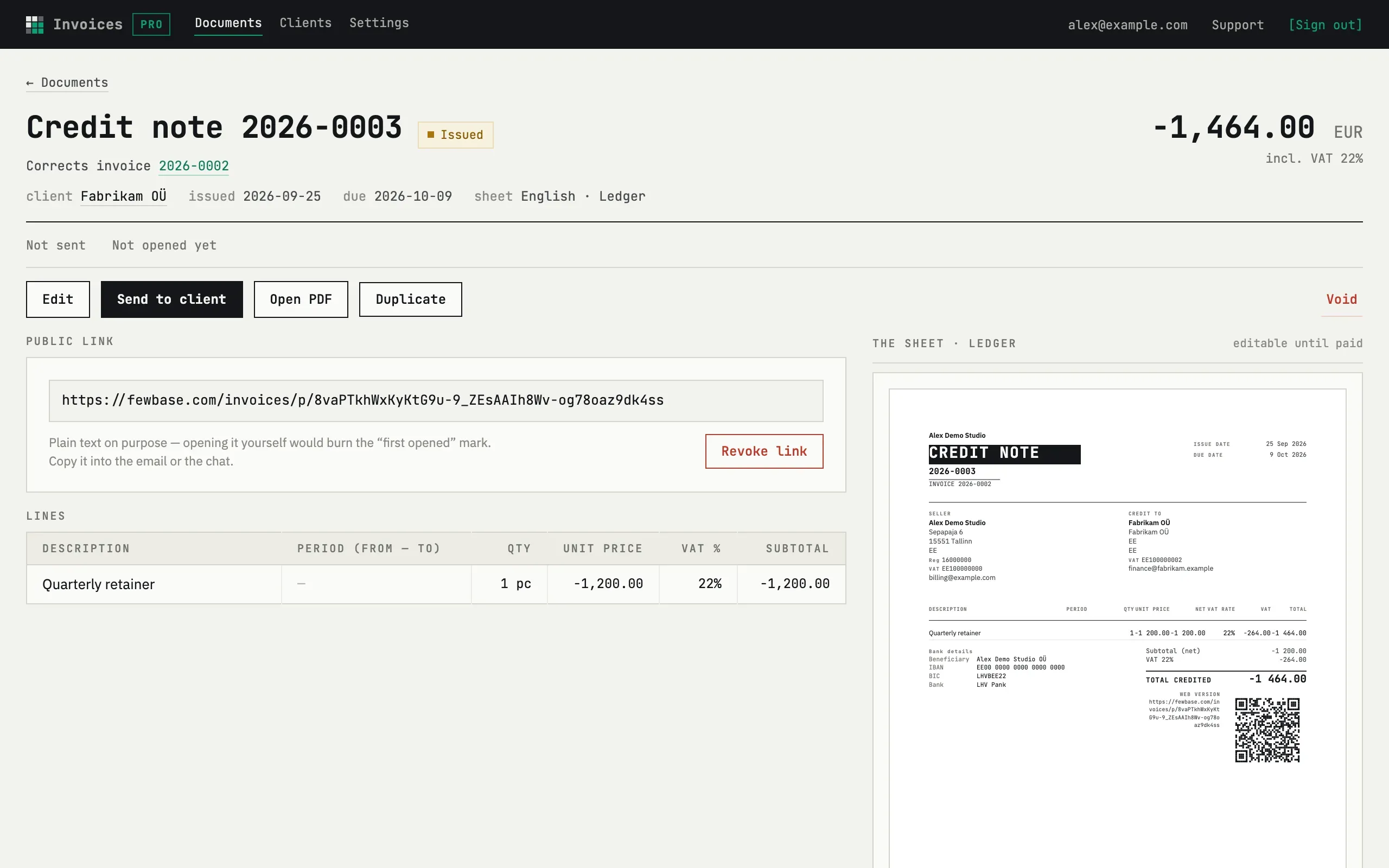
A credit note can itself be sent, downloaded and voided, exactly like an invoice — but it cannot be credited again, and it never has payments of its own.
The client overpaid
Record the payment as given — the amount field accepts more than the remaining balance. The card highlights it as overpaid by the difference; a credit note is the way to formally reduce what was invoiced if the excess should be reflected on the paper trail.
Can I delete a payment I recorded by mistake?
Yes, with Delete next to that payment row, as long as the document is issued or paid (not void). Removing it recalculates Paid, Remaining and the document’s status right away.