What your visitors see: the cookie banner, settings and the consent record
The first screen
Section titled “The first screen”On the first visit the banner shows a short text, a link to your cookie policy (if you set one) and three buttons: Accept all, Reject all and Settings.
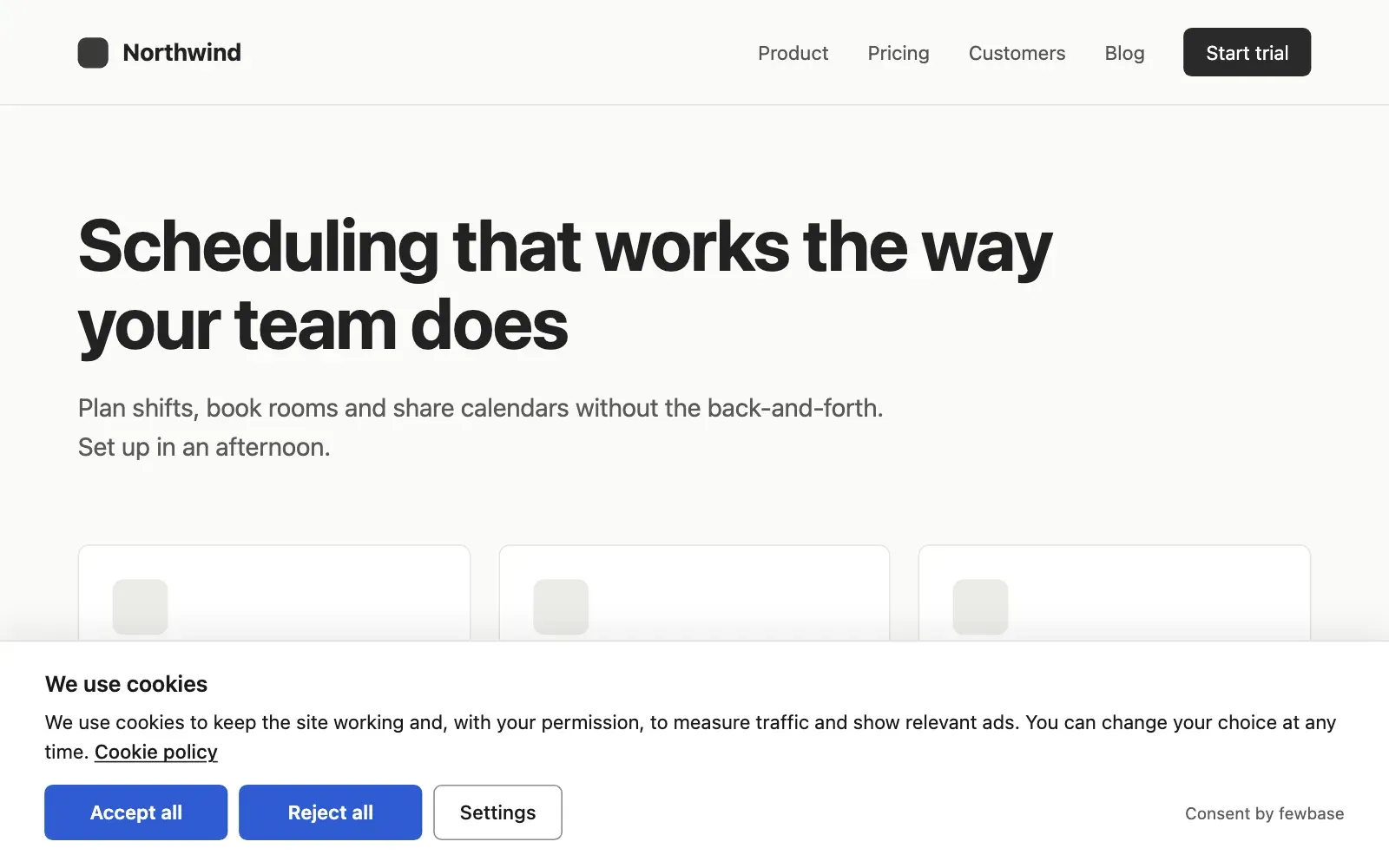
- “Accept all” and “Reject all” have the same colour and size.
- The banner has no close button. In the Modal layout and in the settings window, Esc and a click outside do not close the window. The visitor has to choose.
- The Bar and the Box do not block the page. The Modal blocks scrolling until the visitor chooses.
- Until the visitor chooses, the tools you connected stay off. The one exception is Advanced mode for Google tags, see Connectors.
Settings
Section titled “Settings”“Settings” opens a window with four categories.
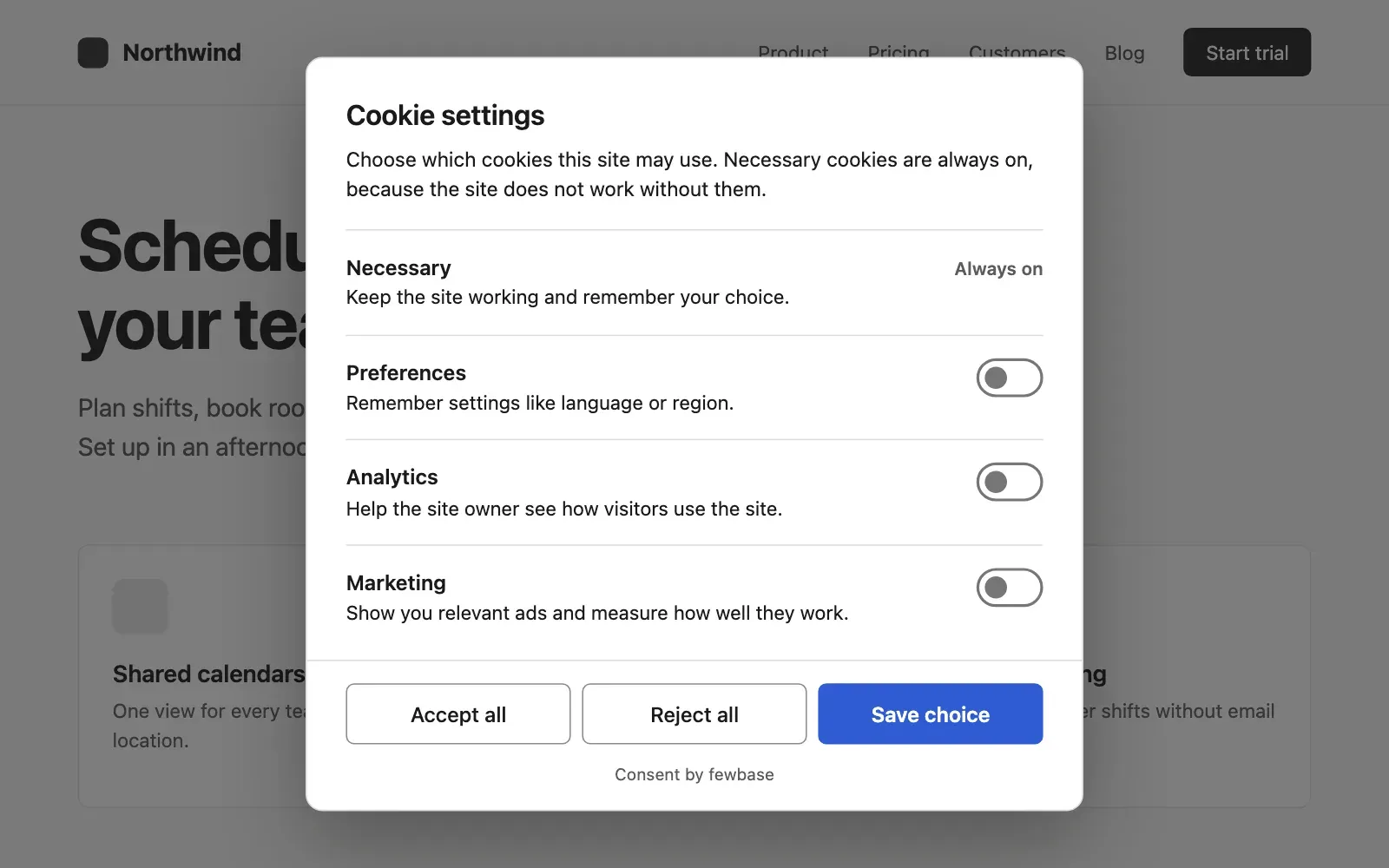
| Category | What it is for | Default |
|---|---|---|
| Necessary | Keeps the site working and remembers the choice | Always on |
| Preferences | Remembers settings like language or region | Off |
| Analytics | Helps the owner see how visitors use the site | Off |
| Marketing | Shows relevant ads and measures them | Off |
Under each category the visitor sees the services you connected to it. Google Analytics and Microsoft Clarity are listed under Analytics. Google Tag Manager, Google Ads and Meta Pixel are listed under Marketing. Your own scripts are listed under the category you chose for them.
The window also has “Accept all” and “Reject all”. “Save choice” saves the switches as they are.
Changing the choice later
Section titled “Changing the choice later”After a choice, a small round button stays in a corner of the page. It opens the settings again with the saved choice. You can hide the button on the Appearance tab and use your own link instead. See Your own tags.
When a visitor switches off a category they allowed before, the banner
tells Google and Clarity about the new choice, deletes their cookies (_ga,
_ga_*, _gcl_*, _fbp, _fbc, _clck and _clsk) and reloads the page
once, so that scripts that are already running stop. Other cookies, for
example from your own scripts, are not deleted by the banner.
The consent record
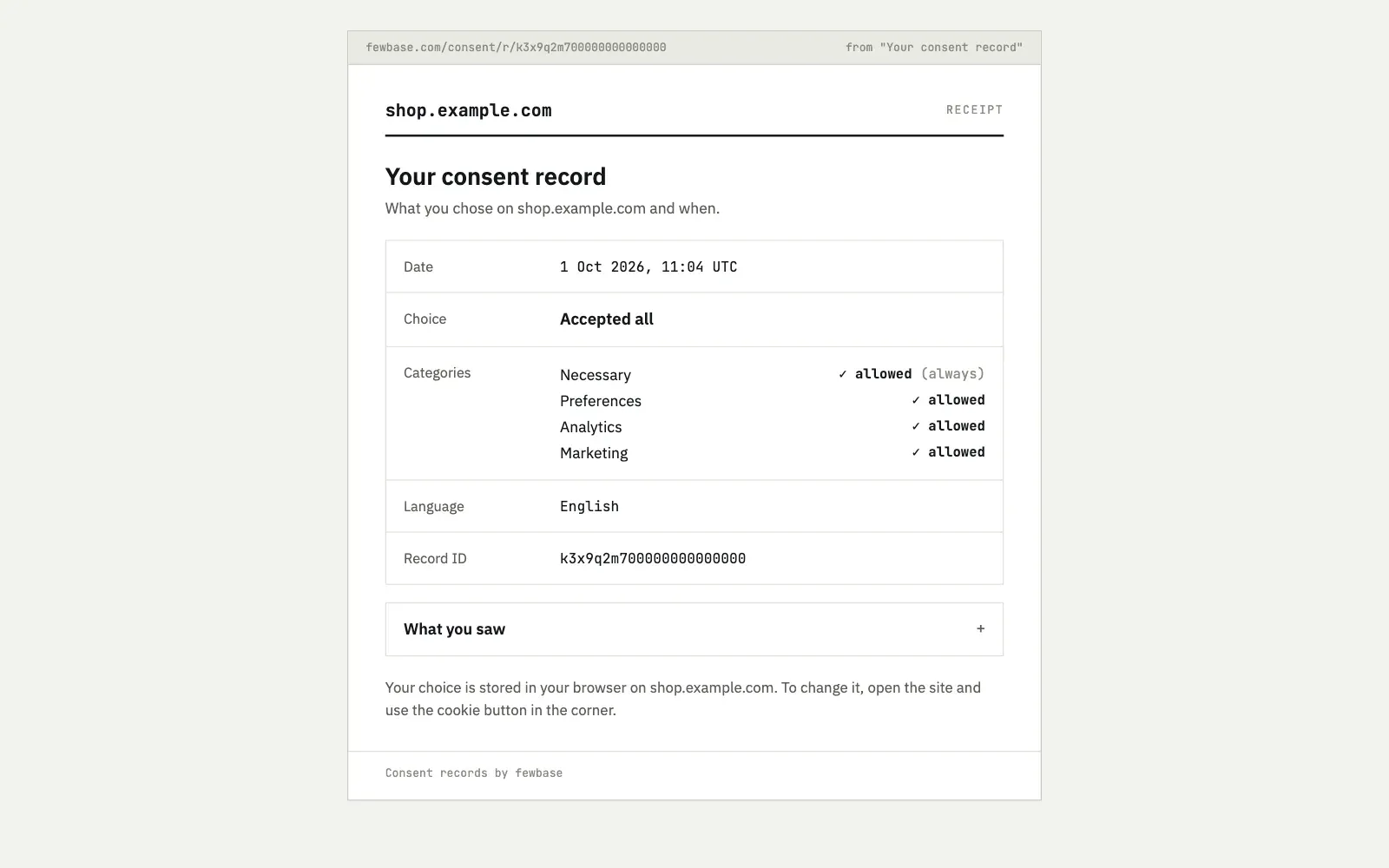
Section titled “The consent record”When the visitor already has a saved choice, the settings window shows a link “Your consent record”. It opens a page with the date, the choice, the categories and the exact banner text the visitor saw.
When the banner comes back
Section titled “When the banner comes back”- After the consent period ends: about 12 months by default, or about 6 months.
- When you add a service to a category and confirm “Save and ask again” in the dashboard.
- When the visitor clears the cookies of your site.
Language
Section titled “Language”The banner picks the language of the page (<html lang>), then the
languages of the browser, in that order. Only the first part of a code
counts, so pt-BR matches pt. If none of them is in your list, it uses
the first language of the list.