How to add a cookie banner to your website without breaking your analytics
How to add a cookie banner on Next.js, Tilda, Webflow or WordPress so that analytics and pixels wait for consent, and how to check that it works.
A common mistake with cookie banners looks like this. The banner is on the page, the visitor sees “Accept all” and “Reject all”, and Google Analytics has already sent its data. Before the person clicked anything.
We checked this on a test page. First we put the line of our banner,
Consent, at the top of <head>. Below it we
added a test analytics tag, pasted into the page as it is. The banner
appeared, and the analytics request went out at once, with no choice at all.
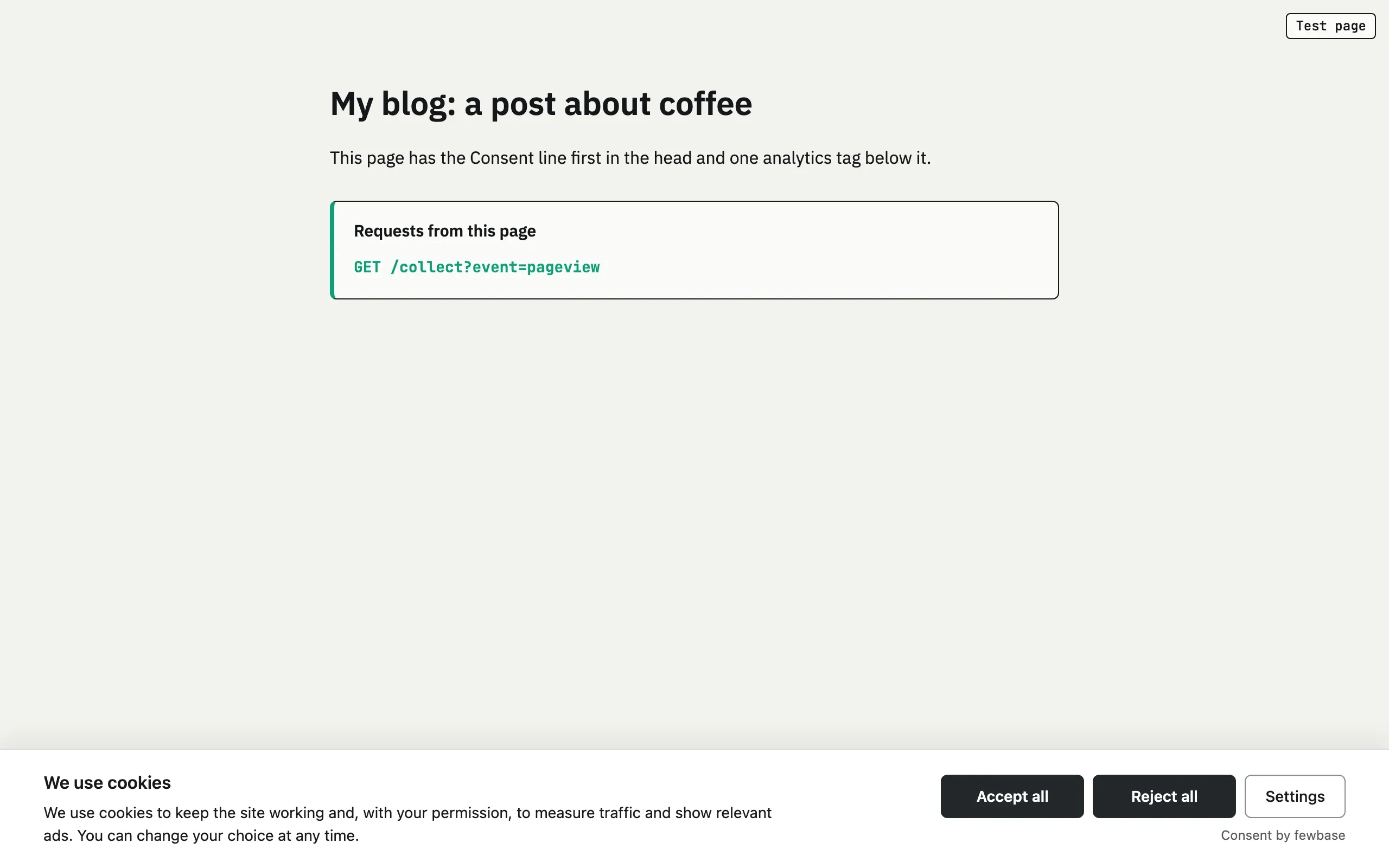
The reason is simple: a banner cannot stop a script that is already in the page and runs by itself. After the four steps below, the banner really controls your tags. Why you need consent in the first place, and which analytics needs it, is in our article on EU rules for cookie banners.
Step 1. List all your tags
Before you paste anything, make a list of everything your site loads:
- analytics: Google Analytics, Microsoft Clarity and similar tools;
- ads: Google Ads, Meta Pixel, LinkedIn and other pixels;
- Google Tag Manager, if the rest is connected through it;
- chat widgets, embedded YouTube videos, maps.
Also check the settings of your platform. People often connect analytics not with code, but with a field in the site builder’s settings or with a plugin. That tag also ends up in the page, and the banner does not know about it.
Step 2. Put the banner line first in <head>
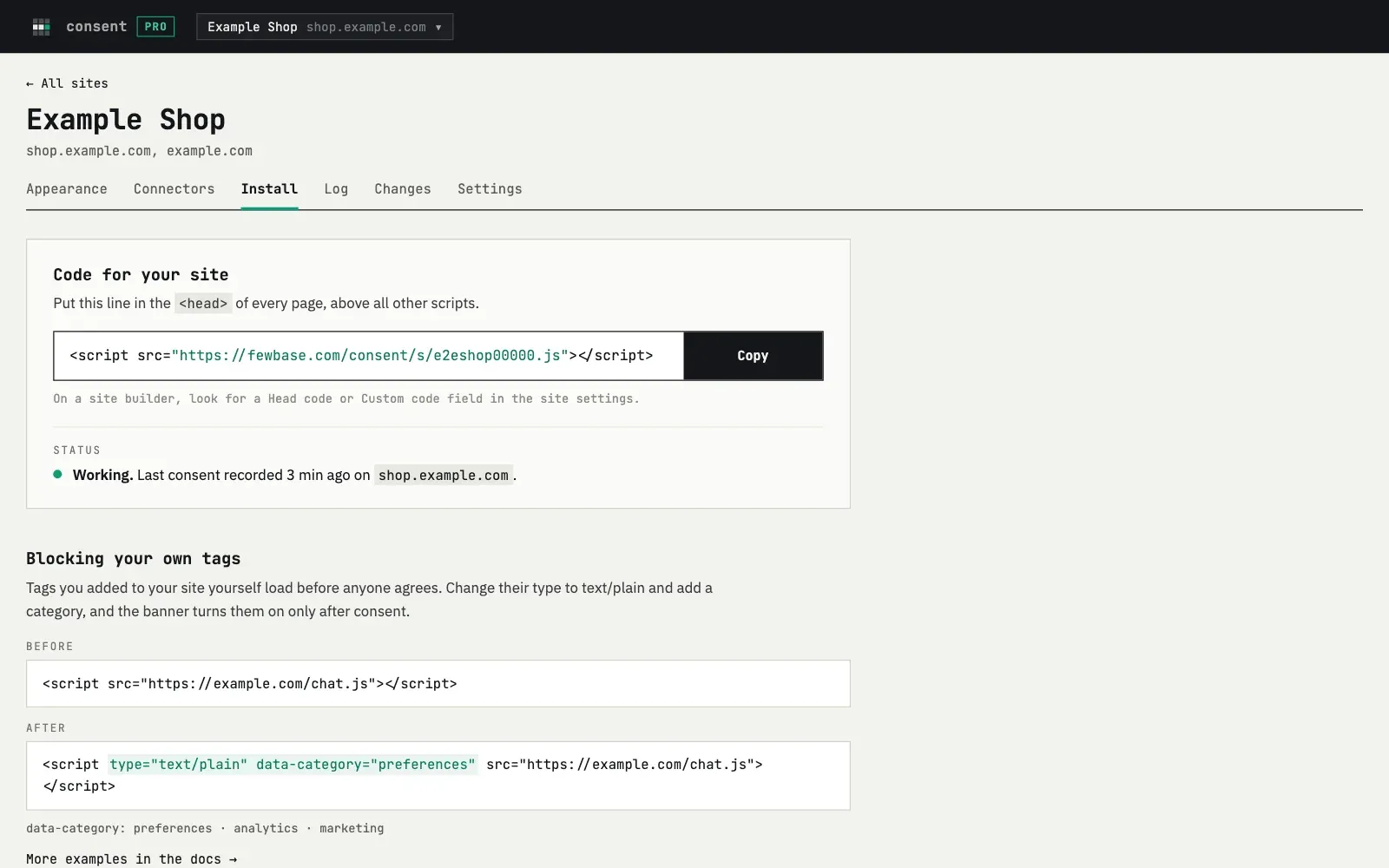
The banner has to run before all other scripts. Only then can it hold your tags back until the visitor chooses. In Consent this is one line from the Install tab:
<script src="https://fewbase.com/consent/s/YOUR-ID.js"></script>Do not add async or defer to it. With these attributes the browser may
run the line later than other tags.
Where to paste it on different platforms.
Next.js
The Next.js docs suggest the Script component with the beforeInteractive
strategy for consent managers
(nextjs.org).
We checked what happens in practice (Next.js 16.4.3, React 19.3.1). Such a
script gets into <head> only as a preload, and Next.js starts it later. In
our test, a tag written directly in <head> ran before the banner.
A plain tag in the <head> of the root layout, before your other scripts, is
more reliable:
// app/layout.tsx
export default function RootLayout({ children }: { children: React.ReactNode }) {
  return (
    <html lang="en">
      <head>
        <script src="https://fewbase.com/consent/s/YOUR-ID.js"></script>
      </head>
      <body>{children}</body>
    </html>
  );
}
In the final HTML this is a normal <script src> without async or defer,
and in our test it ran first.
Tilda
You add code for all pages in the site settings: Site Settings, then More, then HTML code for the head section. After that, publish your pages again, or the code will not appear (Tilda help).
Webflow
Open Site settings, the Custom code tab, the Head code section, then click Save changes. The code goes live only after you publish the site. You get the custom code field with a Core, Growth, Agency or Freelancer Workspace, or with an active Site plan (Webflow help).
In the same article Webflow suggests adding async or defer to scripts in
<head> so that pages load faster. The banner line is the exception: leave it
without these attributes.
WordPress
WordPress itself has no field for code in <head>. Scripts are printed with
the wp_head hook or added with wp_enqueue_scripts
(WordPress docs),
usually in a child theme or a small plugin. Since version 6.3,
wp_enqueue_script has a strategy parameter with the values defer and
async
(WordPress docs).
Do not set it for the banner line.
Step 3. Hand your tags over to the banner
Now give every tag from your list to the banner. There are two ways.
Remove the code and add the ID
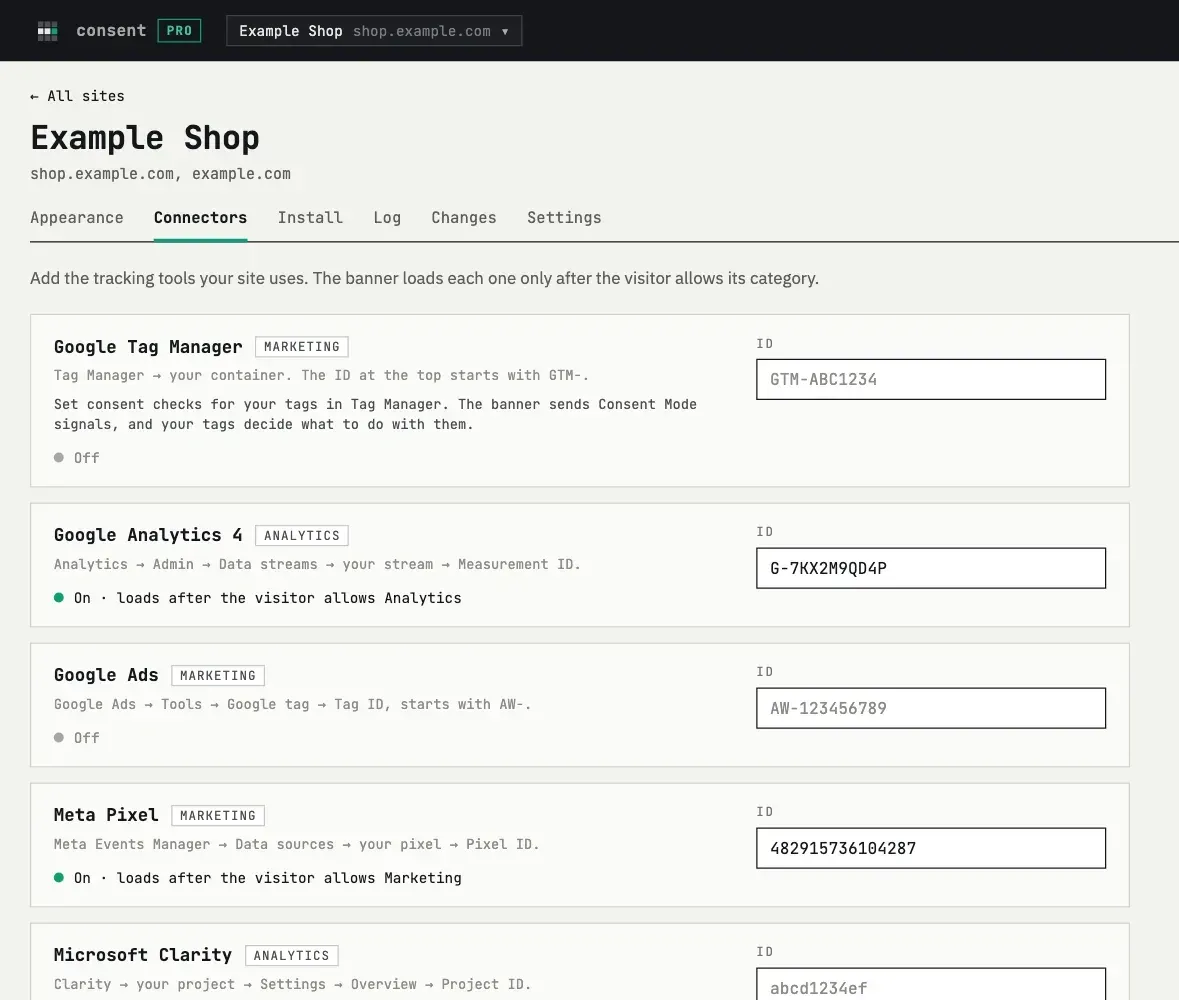
For popular services this is the easiest way. Remove their code from your pages and add their ID on the Connectors tab: Google Tag Manager, Google Analytics 4, Google Ads, Meta Pixel and Microsoft Clarity. The banner loads each service after the visitor allows its category.
Mark the tag
If the code has to stay in your HTML, change the type of the tag to
text/plain and add a category:
<!-- before: runs at once -->
<script src="/tracker.js"></script>

<!-- after: waits for the visitor's choice -->
<script type="text/plain" data-category="analytics" src="/tracker.js"></script>
The browser does not run a script with the type text/plain. The banner runs
it after the visitor allows analytics. Inline scripts work the same way. For
videos and maps in an <iframe>, move the address from src to data-src
and add data-category.
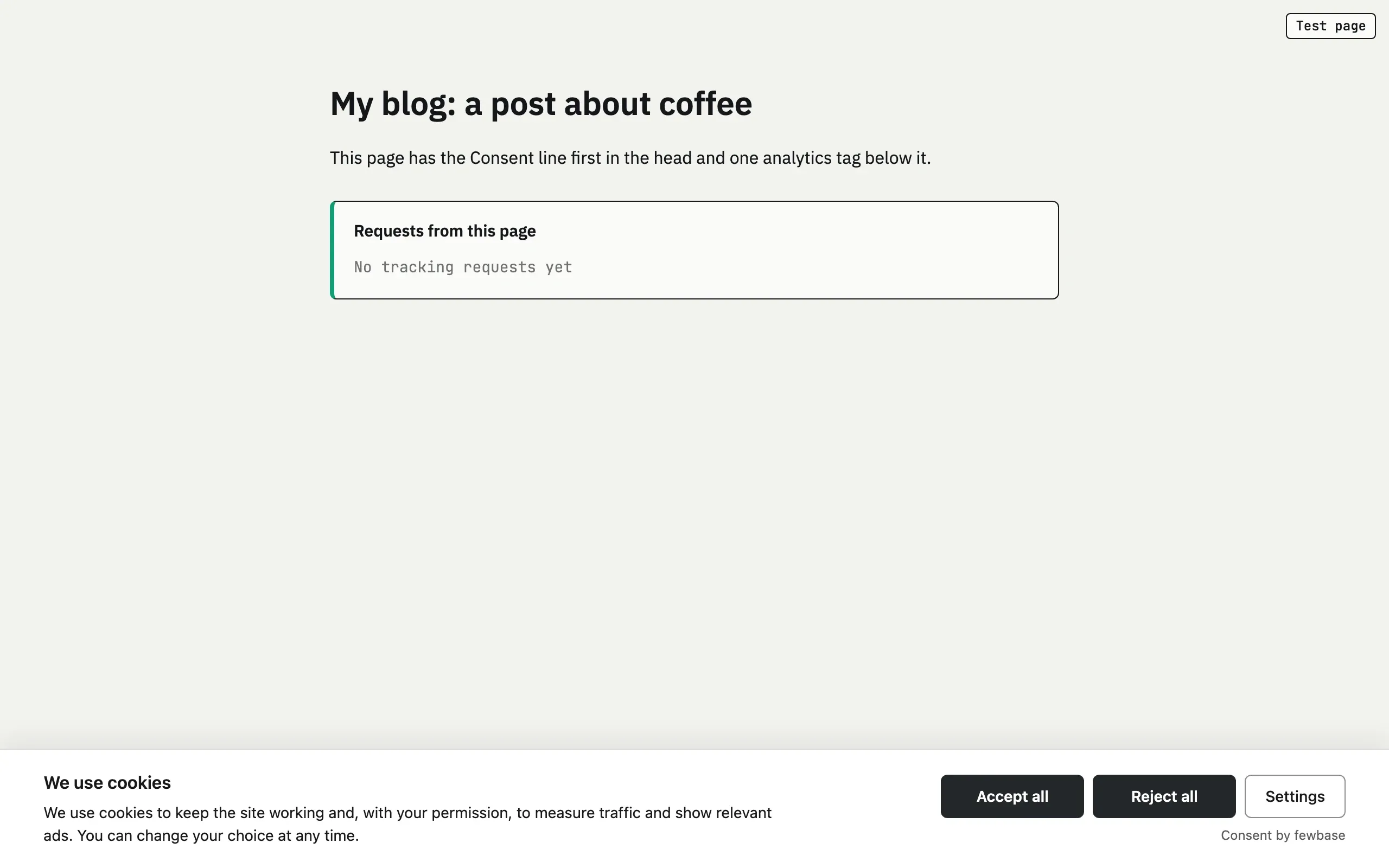
On the same test page with the tag marked, not a single request went out before the choice.
If you use Google Tag Manager
With Tag Manager you work with Google’s consent mode (Consent Mode). The banner first sets the default consent state, before all tags. Tag Manager has the Consent Initialization trigger for this. After the visitor chooses, the banner passes the updated state (Google). Google tags have built in consent checks. For other tags you can turn on an additional consent check in Tag Manager (Tag Manager help).
Consent Mode has two versions. In the basic version, Google tags do not load until the visitor gives consent. In the advanced version they load at once, and if the visitor refuses, they send requests to Google without cookies (Google; Analytics help).
Consent has consent mode built in. Tag Manager loads after any choice, even after “Reject all”, because from then on it checks consent for each tag by itself.
If Meta Pixel is in your code
If the pixel stays in your code, Meta has its own way: call
fbq('consent', 'revoke') before fbq('init') on every page, and after
consent call fbq('consent', 'grant')
(Meta docs).
It is simpler to hand the pixel over to the banner by its ID, as in step 3.
Step 4. Check that it works
Open your site in a new Incognito window in Chrome. Chrome does not keep site data after an Incognito session ends (Chrome help), so in a new session you see the banner like a new visitor.
- Open DevTools, go to the Network panel, turn on Preserve log so that requests are not lost when the page reloads, and turn on Disable cache (Chrome DevTools).
- Reload the page and, while the banner is on screen, filter for requests to your analytics and ad services. There should be none.
- In Application, Storage, Cookies there should be no analytics cookies such
as
_ga(Chrome DevTools). - Click “Reject all”: still no requests.
- Open a new Incognito window and click “Accept all”: now the requests go out.
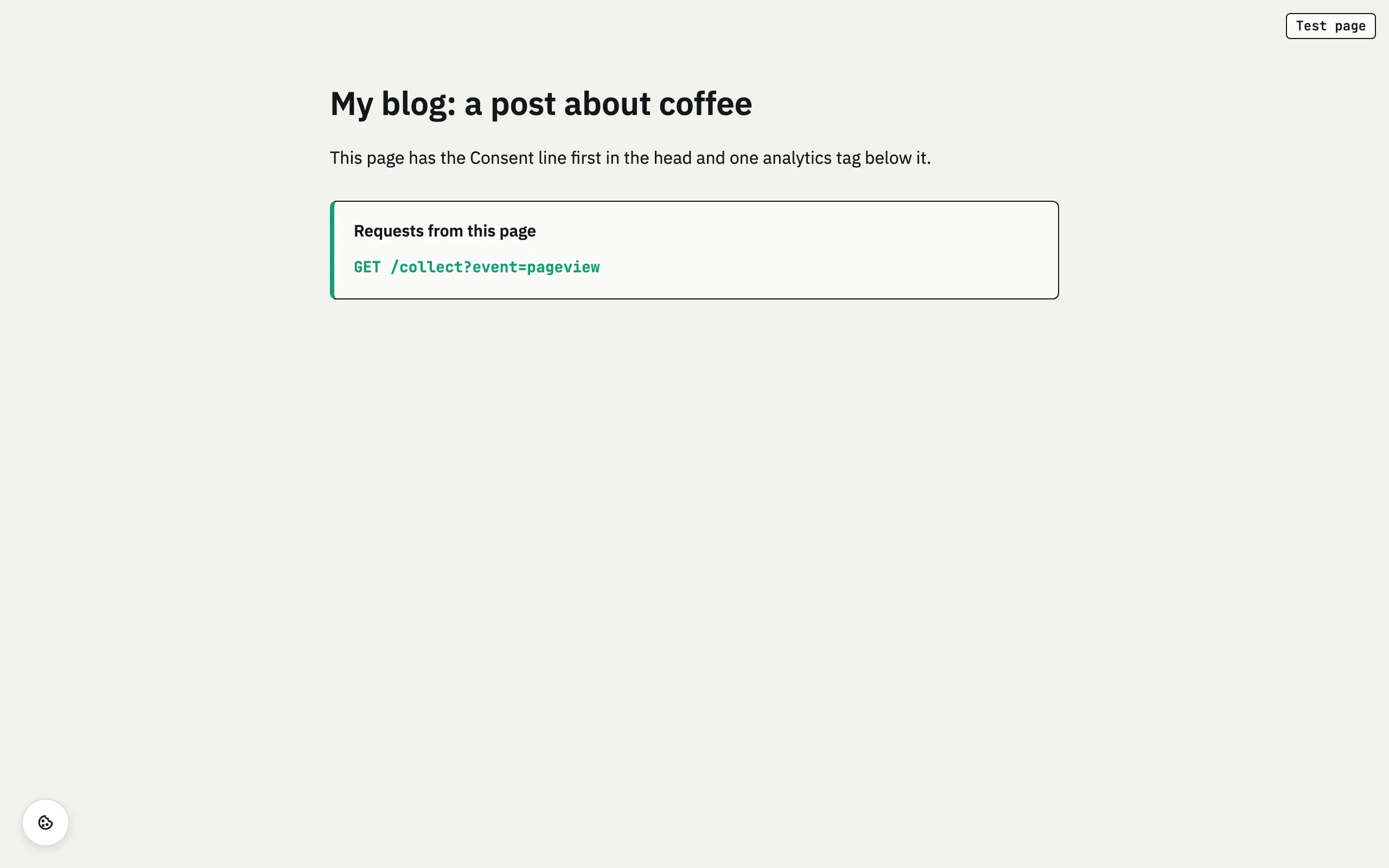
Consent has one more check: after the first choice on your site, the Install tab shows the status “Working”, the time of the last consent and the domain it came from.
Checklist
- All tags are listed, including the ones added in your platform’s settings.
- The banner line is first in
<head>, withoutasyncordefer. - Every tag is either connected through the banner by ID, or marked with
type="text/plain"anddata-category. - Videos and maps in an
<iframe>are marked withdata-src. - In an Incognito window there are no analytics requests and no cookies
like
_gabefore the choice. - After “Reject all” there are no requests, after “Accept all” they go out.
What Consent does not do: it does not scan your site and does not find tags by itself. A tag that you did not connect or mark runs as before. That is why steps 1 and 4 matter most.
You can start for free.
