Run your small business from Claude: invoices, support and time tracking through MCP
How to connect Claude to your invoices, support tickets, time tracking and uptime checks through MCP, what it can do, and how you stay in control.
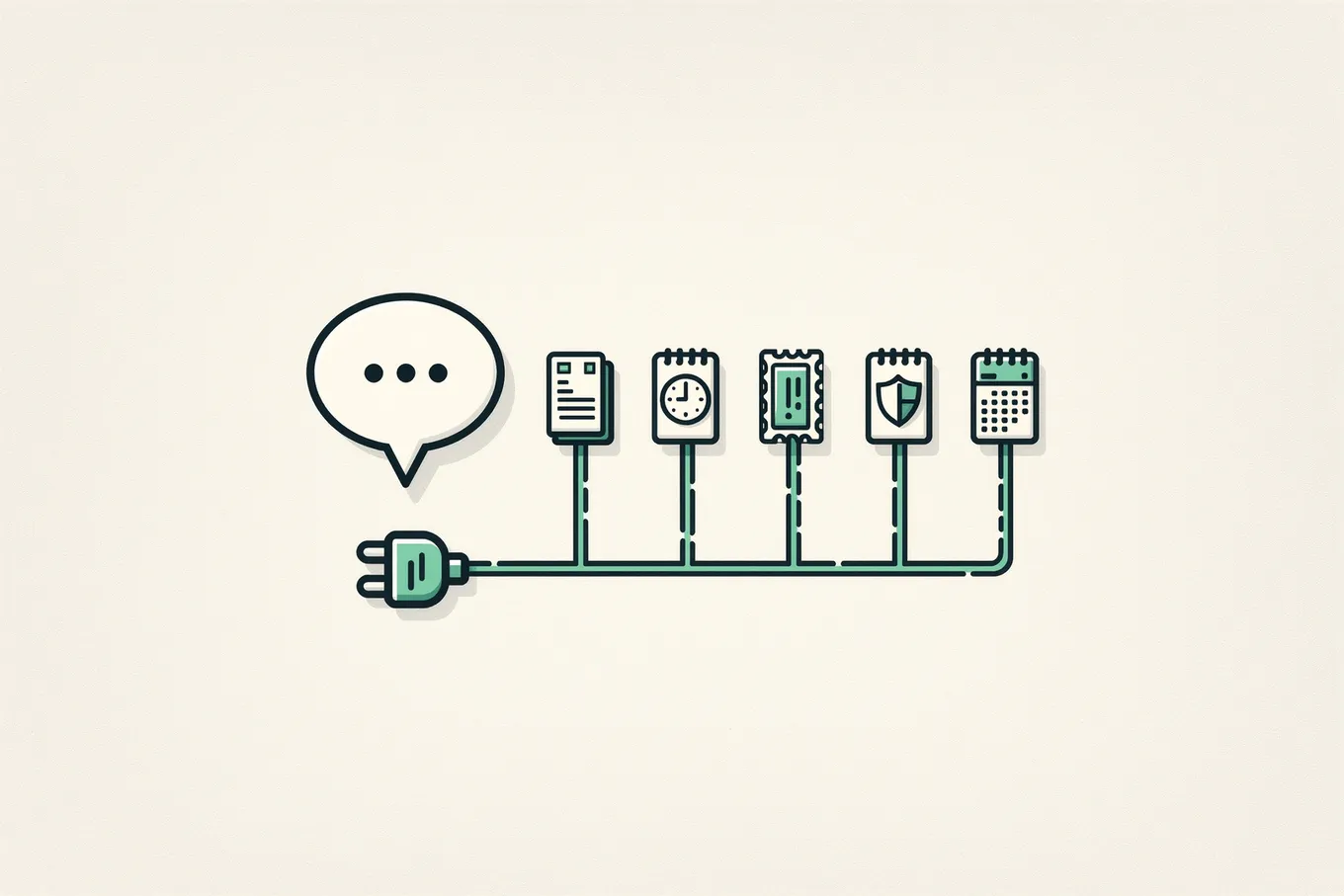
A small business means a lot of browser tabs. One for the timer, one for invoices, one for customer questions, and somewhere else the uptime checks and the list of subscriptions. Each task is simple. Switching between them is tiring.
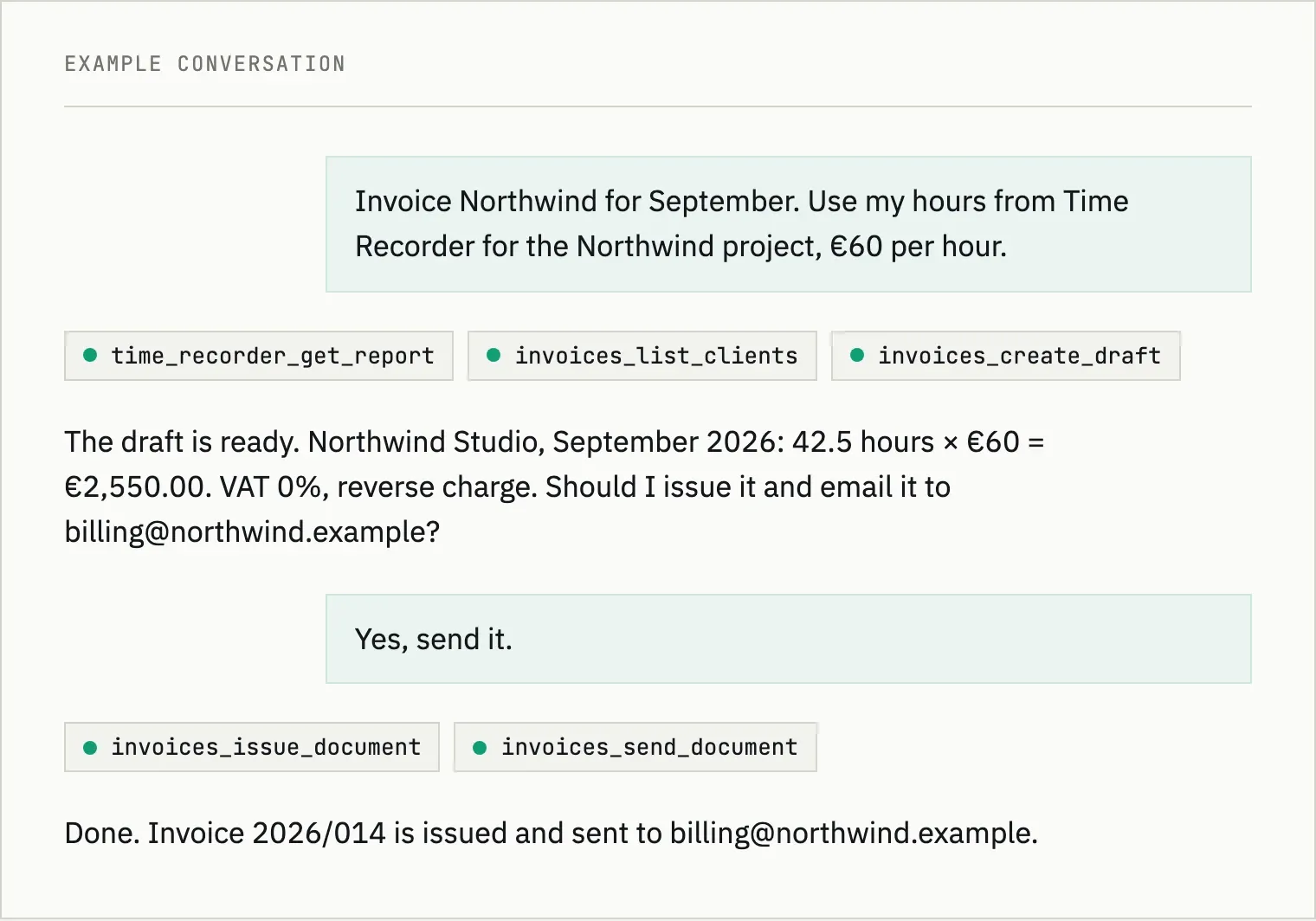
Now you can connect all fewbase tools to Claude. You write in plain words, “Invoice Northwind for September using my hours”, and the assistant finds the hours and the client and prepares the invoice. Here is how it works, what it can already do, and how you stay in control.
What MCP is
MCP (Model Context Protocol) is an open standard for connecting AI applications to external systems (modelcontextprotocol.io). Anthropic released it as open source in 2024 (Anthropic), and today both Claude and ChatGPT support it.
In simple terms: fewbase has an MCP server at https://fewbase.com/mcp. You
connect it to your assistant, and the assistant can work with your fewbase data
the same way you do in the app.
What you can ask
These are requests that work through the connection. The assistant picks the right tools by itself.
- Invoices. “Invoice Northwind for September using my hours from Time Recorder, €60 per hour.” The assistant gets the time report, finds the client, creates a draft and asks if it should send it.
- Support. “Which tickets are waiting for a reply?” And then: “Reply to the second one that the fix ships on Friday.”
- Time tracking. “How many hours did I log on the Northwind project this week?” Or: “Start the timer on the redesign task.”
- Monitoring. “Which of my sites have an SSL certificate or a domain that expires this month?”
- Subscriptions. “How much do I spend on subscriptions per month, and what will be charged next week?”
- Cookie banner. “How many visitors refused analytics in the last 30 days?”
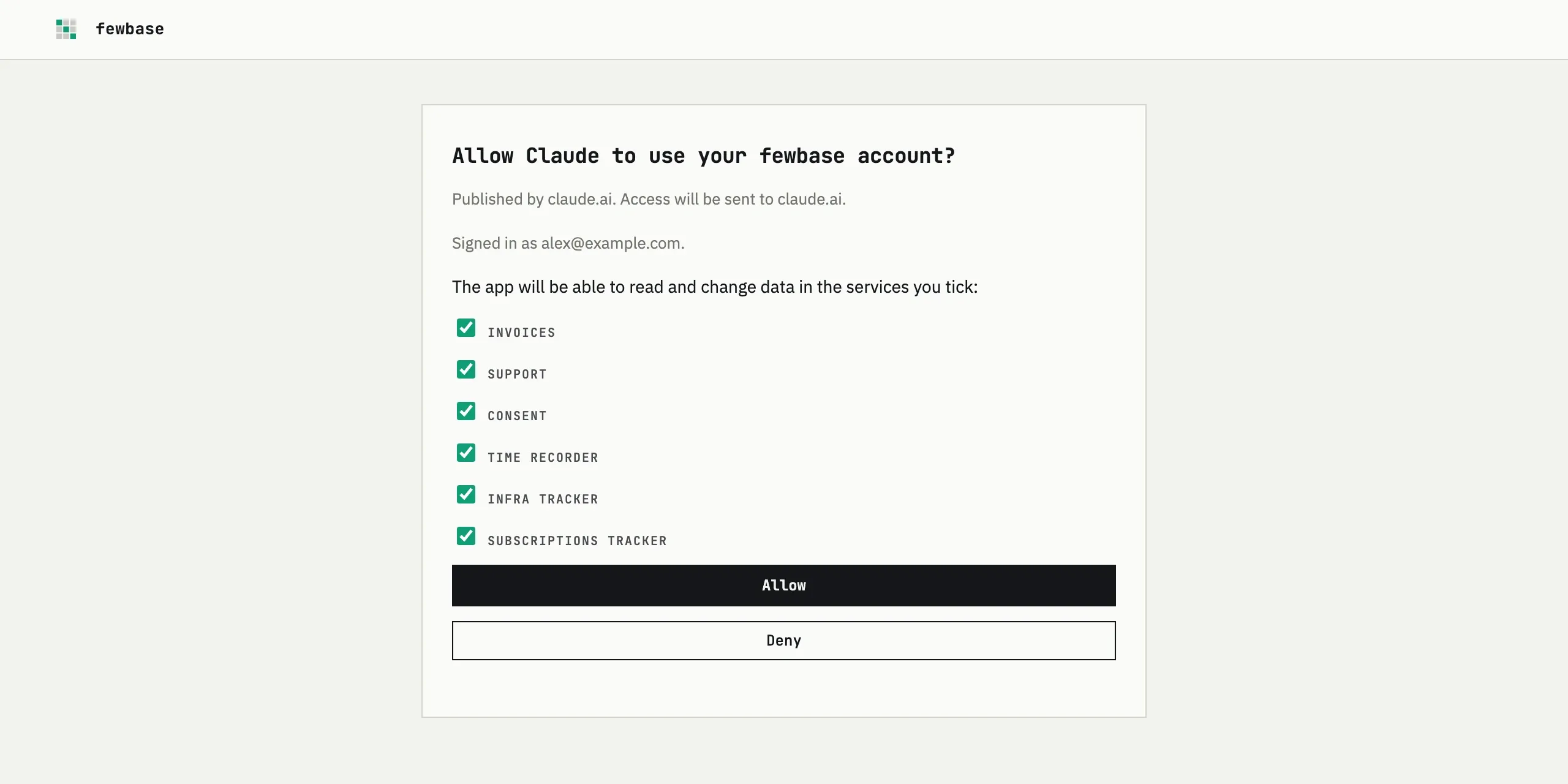
The assistant can work with six services: Invoices, Support, Consent, Time Recorder, Infra Tracker and Subscriptions Tracker.
How to connect
Claude.ai
- Open Customize, then Connectors, and choose Add custom connector. On Team and Enterprise plans, an admin adds connectors in the organization settings.
- Paste
https://fewbase.com/mcp. - Sign in to fewbase in the window that opens and tick the services you want to allow.
Custom connectors work on every Claude plan, including Free, but the Free plan allows only one. They work on the web and in the desktop app. Installing connectors on the phone is still in beta (Claude Help Center).
Claude Code
Run one command in a terminal:
claude mcp add --transport http --scope user fewbase https://fewbase.com/mcpThen type /mcp inside Claude Code and sign in to fewbase. With --scope user
the connection works in all your projects, not only in the current folder
(Claude Code docs).
ChatGPT can connect too. The steps are in our docs.
You stay in control
Giving an assistant access to your invoices and to emails to your clients is a big step. So the connection is built to let you see and decide what it can do.
You choose the services
When you connect, fewbase shows which app asks for access, and you tick only the services you need. Sign in works through OAuth, as the MCP specification requires for remote servers (MCP authorization). The assistant never sees your password.
Risky actions are marked
Sending an invoice, voiding it, replying to a customer, closing a ticket, deleting an entry: fewbase marks these tools as destructive. In Claude you decide what the assistant may do without asking. For each tool you can choose “Always allow”, “Needs approval” or “Blocked” (Claude Help Center). Anthropic’s advice is simple: use “Always allow” only for tools you trust to run without supervision.
You see everything and can take it back
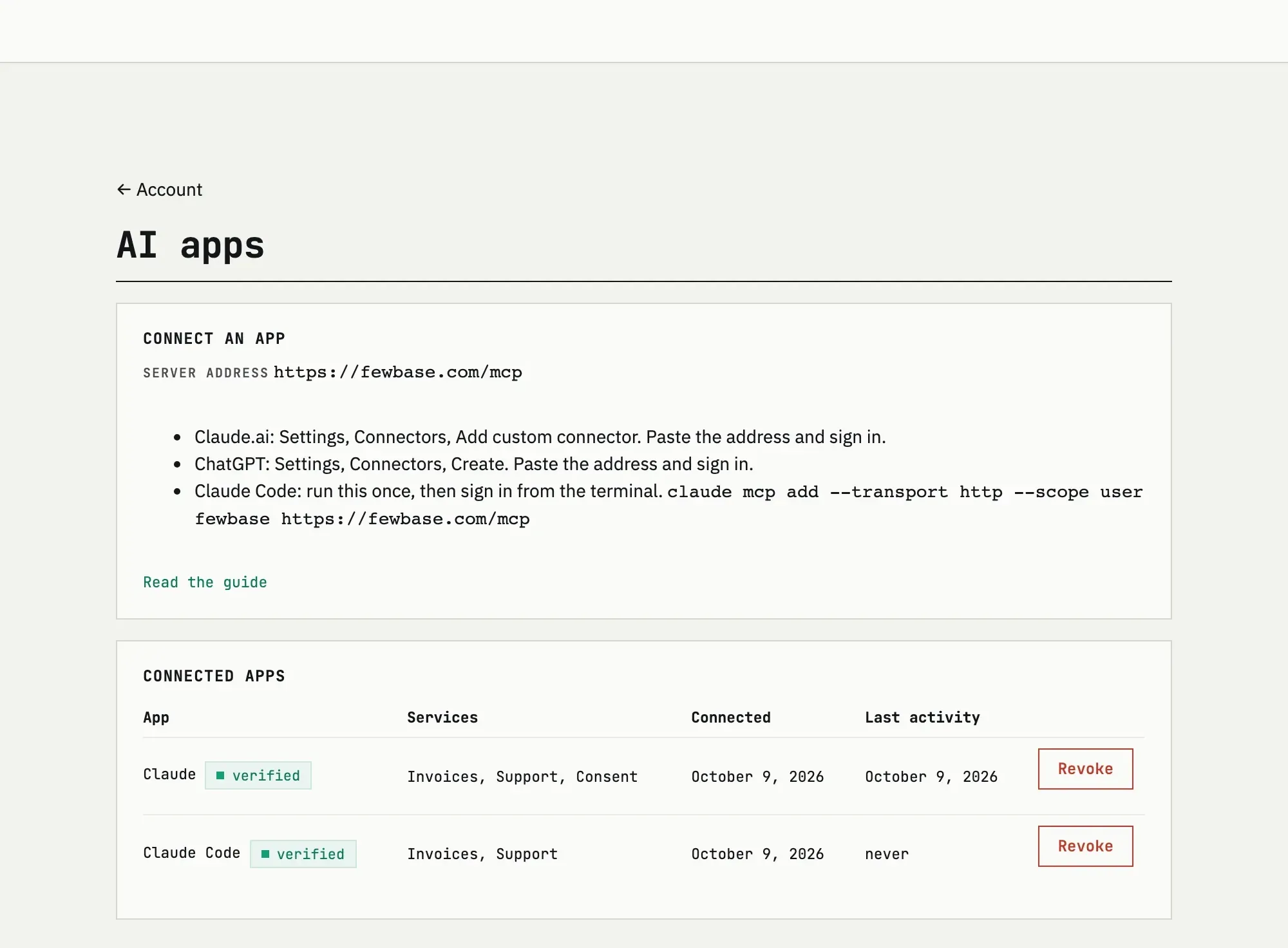
In your fewbase account, the “AI apps” page lists every connected app, the services it may use, when it was connected and when it was last active. The Revoke button removes access within a minute.
The same rules as for you
The assistant works within the limits of your plan. On top of that, fewbase limits how often tools can be called and how many emails can be sent, so a mistake in a conversation does not turn into a hundred emails. Consent can only be read for now.
What not to expect
The assistant is not an accountant. It can misread a request or pick the wrong period, so read the draft before you say “send it”. And remember: when the assistant sends an invoice or a reply, a real email goes to a real person.
One more limit: for now you can only allow a whole service. There is no separate “read only” mode for Invoices or Support.
Try it
The connection works with any fewbase account. You will find the server address and the steps on the “AI apps” page in your account and in our docs.