Time tracking from Telegram: start and stop a timer from your phone
Why a timer in a chat works better than one more app, how to track time from Telegram today, and what a Telegram time tracker should and should not do.

Most time tracking fails for one simple reason. The timer lives on the laptop, and you are not always at the laptop.
You start a task, then a client calls. You walk to a meeting. You go to lunch and the timer keeps running. In the evening you look at the log and you do not trust it anymore. So you fix it from memory, and the numbers are wrong again.
Your phone is with you all the time, and Telegram is already open on it. So it makes sense to control the timer from there. We built this into Time Recorder, our own time tracker, and below we also look at the other ways to do it.
Why a chat and not one more app
A mobile app for time tracking is a fine thing, but it is one more app to install and log in to. Many people use it for a week and then forget about it.
You open Telegram many times a day anyway. It runs on the phone, on the computer and in the browser, so the timer is wherever you are. Starting or pausing takes one message or one tap. And if the bot talks to the same account as the web app, there is nothing to sync: the task you start in the chat is the task you see on the laptop.
What a Telegram time tracker should do
A chat is small. You do not want to manage projects or read reports in it. A good Telegram timer does only a few things, and does them well:
- Start a task by its name.
- Show what is running now: the task, when it started and how long it has been going.
- Pause and resume with a button, so you do not have to remember commands.
- Offer your recent tasks. Most days you switch between the same few tasks, so they should be one tap away.
- Keep one timer at a time. If two timers can run at once, the log stops making sense.
Everything else belongs in the web app: editing entries, projects, tags, reports and exports.
How you can track time from Telegram today
There are three common ways.
Connect a big time tracker through an automation service. Toggl Track, for example, has no official Telegram integration. Its integrations page lists Slack as the only chat tool. You can still connect Telegram through a service like IFTTT. This works for simple actions, but it is one more account and one more thing that can break.
Write your own bot. If you are a developer, a small bot with start, stop and report commands is a weekend project. There are good tutorials, for example this one from Stfalcon. The hard part is not the bot. It is everything around it: editing mistakes, reports, export, hosting and backups.
Use a time tracker with a Telegram bot included. This is what we did with Time Recorder. The bot and the web app share one account and one list of tasks.
How it works in Time Recorder
First you connect Telegram to your fewbase account. You do it once, on the account page (step by step guide). After that you talk to @fewbase_bot.
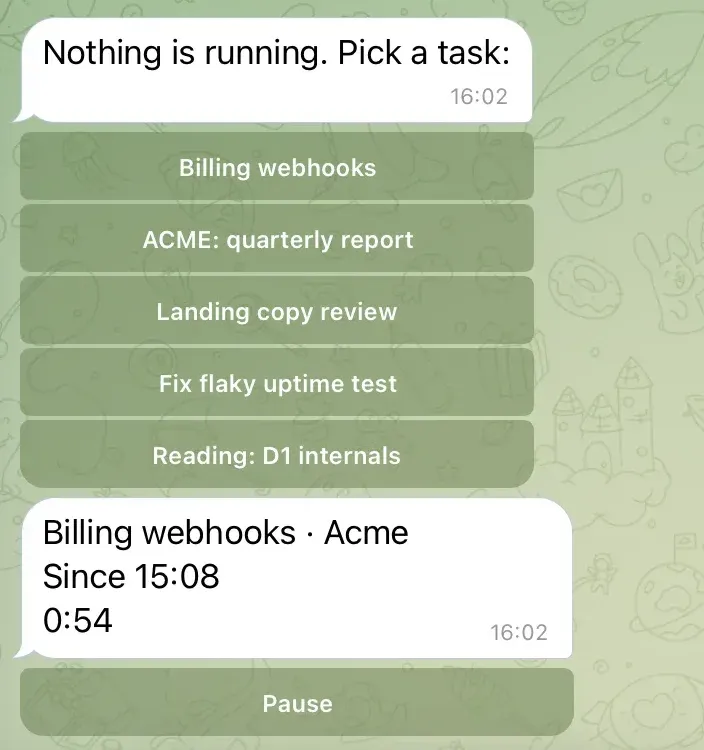
Here is what you can do in the chat:
- To start a new task, send
/newand the name, for example/new Billing webhooks. The bot creates the task, starts the timer and shows a card with the task name, the start time and the time so far. - To see what is running, send
/timeror any other text. The bot shows the same card. - To stop, tap Pause under the card. There is no separate stop command.
- To resume or switch, look at the buttons. When nothing is running, the bot shows your five most recent tasks, and one tap starts a task again.
Only one task runs at a time. When you start a task, the one that was running stops, and its time is saved first. So the log never has two timers on top of each other.
You can also round the time on pause. In the settings you choose a step, for example 15 minutes. When you press Pause, the end of the entry is rounded up to the next step. If you resume in the same window, the same entry continues. Switching to another task always saves the exact time.
What the bot does not do, on purpose
The bot is a remote control for the timer. It is not a second app. In the chat you cannot:
- create projects or add tags,
- write notes to entries,
- edit the start or the end of an entry,
- see reports or export them.
All of this is in the web app, where there is enough space for it. If you forgot to pause, open the day journal later, click Edit on the entry and fix the time. The times are plain fields, so a mistake takes a few seconds to fix.
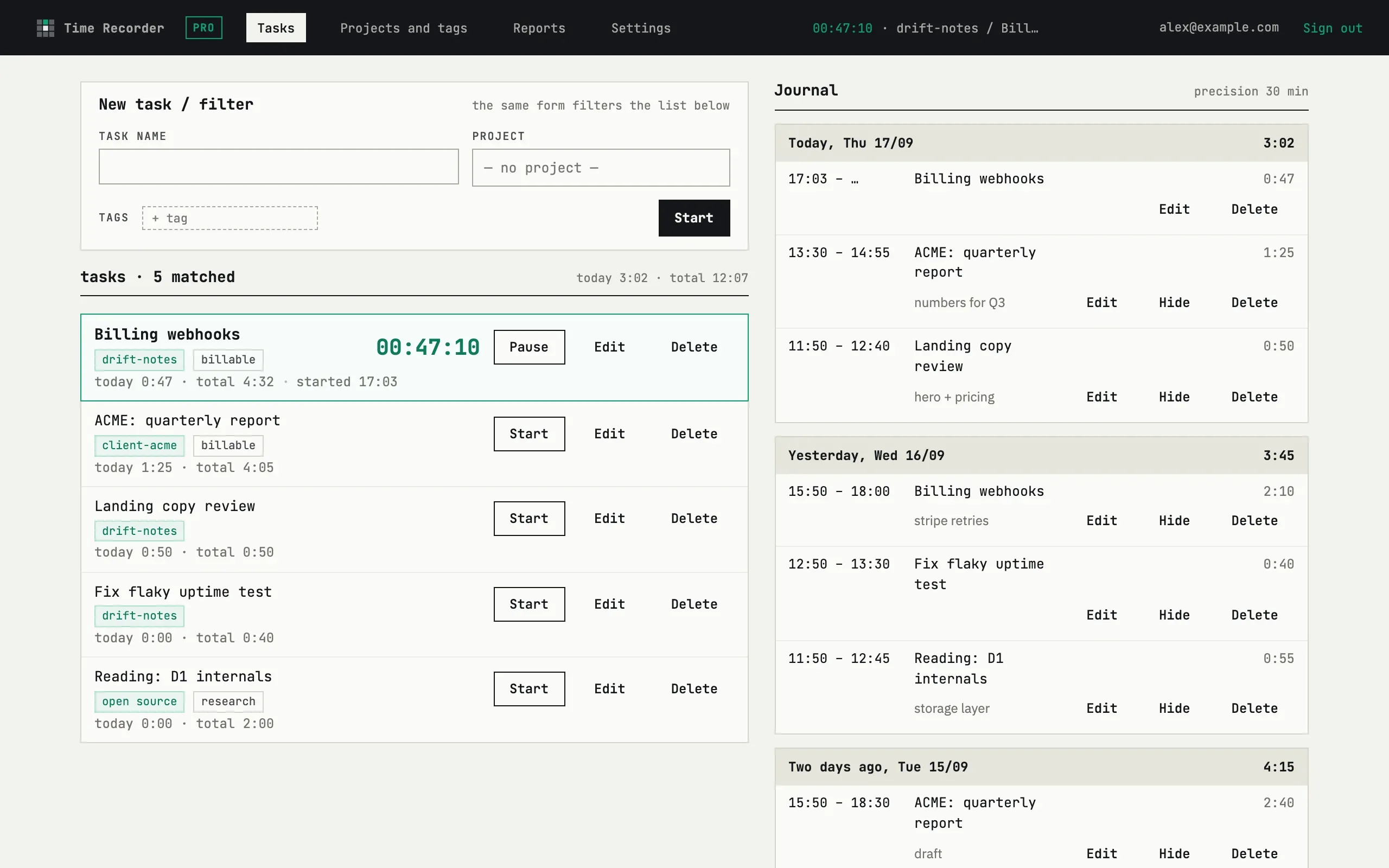
At the end of the week or the month you pick a period, filter by project or tag, and export the report as PDF or CSV. You can attach the PDF to an invoice for a client.
Who it is for
A Telegram timer is most useful if:
- you work for clients and bill by the hour,
- you move between the desk, calls and meetings,
- you already live in Telegram for work chats,
- you tried big time trackers and found them too heavy for one person.
If you need timesheet approvals for a team, automatic tracking of apps on your computer, or native mobile apps, a big team tool is a better fit. Time Recorder is made for one person who wants an honest log without extra work.
Try it
Time Recorder is free for up to 3 active projects, with unlimited tasks and history. The Telegram bot is included in the free plan. Exports on the free plan cover periods of up to 7 days.
You sign in with a link sent to your email, connect Telegram on the account
page, and send /new with the name of your first task.
